


Hi @Albert_Maro, I’ve passed this onto our engineering team for comment. I’ll report back when I have news.
1 Like
Hi again @Albert_Maro, sorry for the delayed reply. I heard back from engineering regarding this.
It’s probably because the SD card is not being indexed by Spotlight, which is needed for this feature. You could try these steps to check:
-
Check Spotlight Privacy Settings
- Open System Settings (or System Preferences on older macOS versions)
- Go to Siri & Spotlight
- Scroll down and click Spotlight Privacy…
- If your SD card is listed.
- Select it
- Click – (minus) to remove it
Once removed, Spotlight will start indexing it again.
-
Force Spotlight to Re-index the SD Card. If Spotlight still doesn’t find files:
- Open Spotlight Privacy again
- Drag the SD card into the list (this disables indexing)
- Wait about 10 seconds
- Remove it again using – (minus)
This forces Spotlight to rebuild its index.
-
Check the SD Card Format. Spotlight works best with these formats:
- APFS
- Mac OS Extended (HFS+)
- exFAT (usually works fine)
- FAT32 can be unreliable
- If the format is unsupported or the filesystem is damaged, Spotlight may skip indexing
-
Ensure the SD Card Is Writable. Spotlight needs write access to store its index:
- Make sure the physical lock switch on the SD card adapter is unlocked
- Check the card isn’t mounted read-only
- To verify:
- Open Finder
- Select the SD card
- Choose File → Get Info
- Confirm you have Read & Write permissions
-
Allow Time for Indexing.
- For large SD cards (photos, videos, audio libraries), indexing may take minutes or even hours.
- You can monitor progress with:mdutil -s /Volumes/YourSDCardName⸻
Notes:
- Spotlight may not index some proprietary or camera-specific directory structures
- Removing and reinserting the SD card can sometimes retrigger indexing
I could swear I have already checked all of that, but I will review it one more time just to be 100% sure.
However, has anyone from the Algoriddim team actually tried to reproduce this specific scenario to rule out a code issue/bug?
I have a strong feeling it might be an actual bug rather than a settings oversight. After all, migrating a library from an internal SSD to a microSD card is likely an edge case that not many users do, so it’s possible this specific ‘Watch Folder’ behavior on external media wasn’t fully tested.
I will double-check everything later today and come back with feedback
1 Like
I just gave it a shot. I made a new folder on my micro SD card and added it to DJAY’s preferences. Then I restarted DJAY (optional?), I dropped a new track into that folder, and it showed up in my ‘recently added’ section almost right away.
1 Like
Thanks for checking and confirming @Mister_Tuur
I have double-checked every single point you mentioned, and everything is set up correctly. I am attaching screenshots of my settings below to demonstrate this.
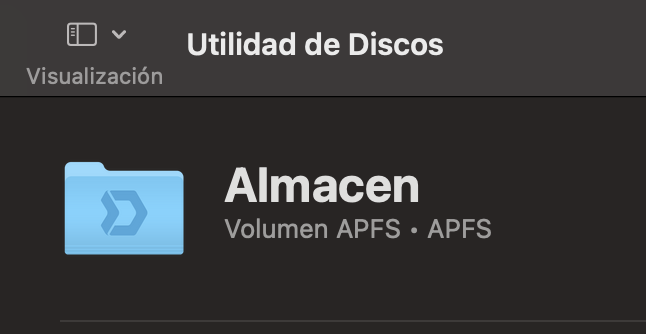
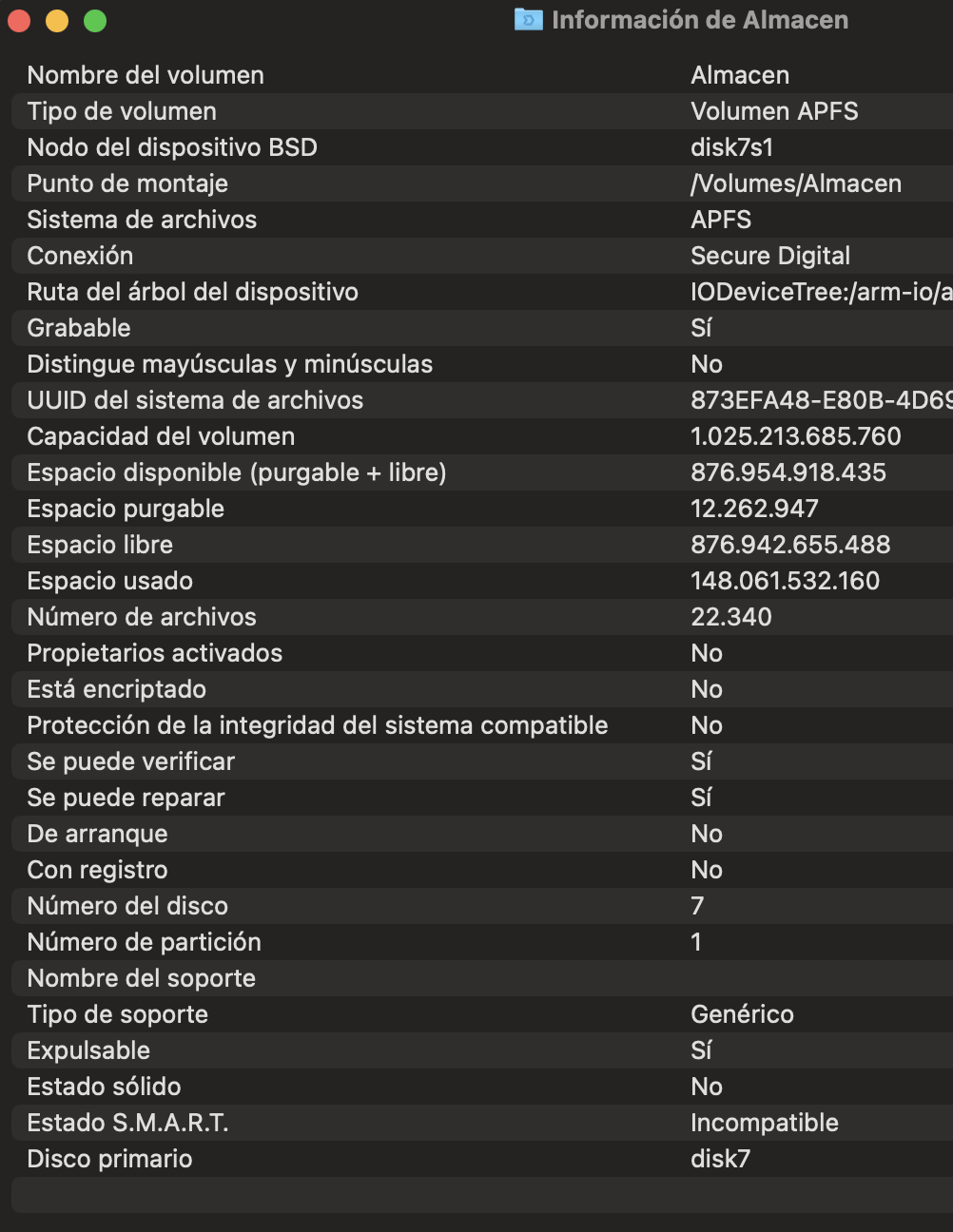
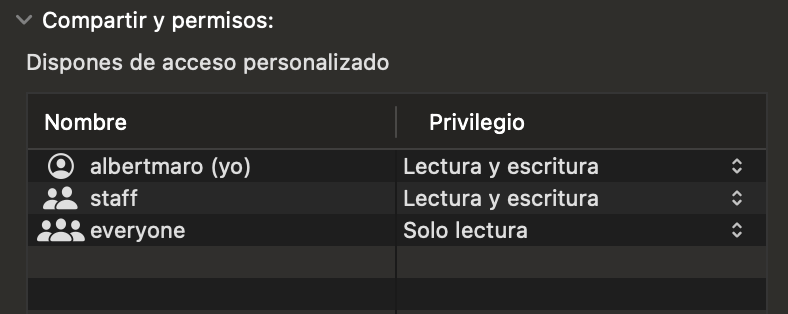
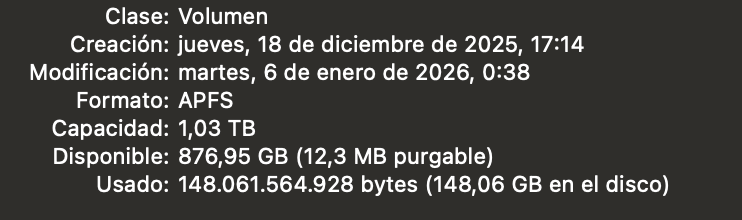
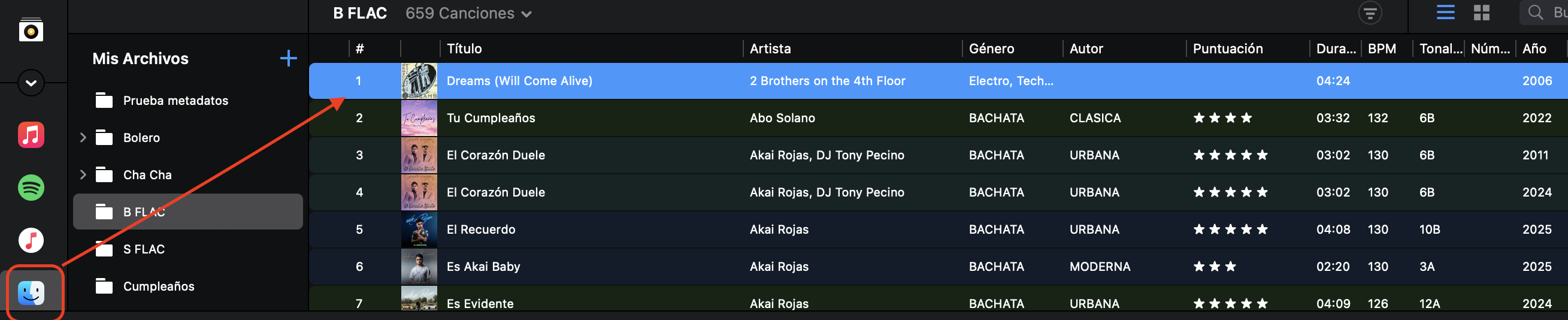

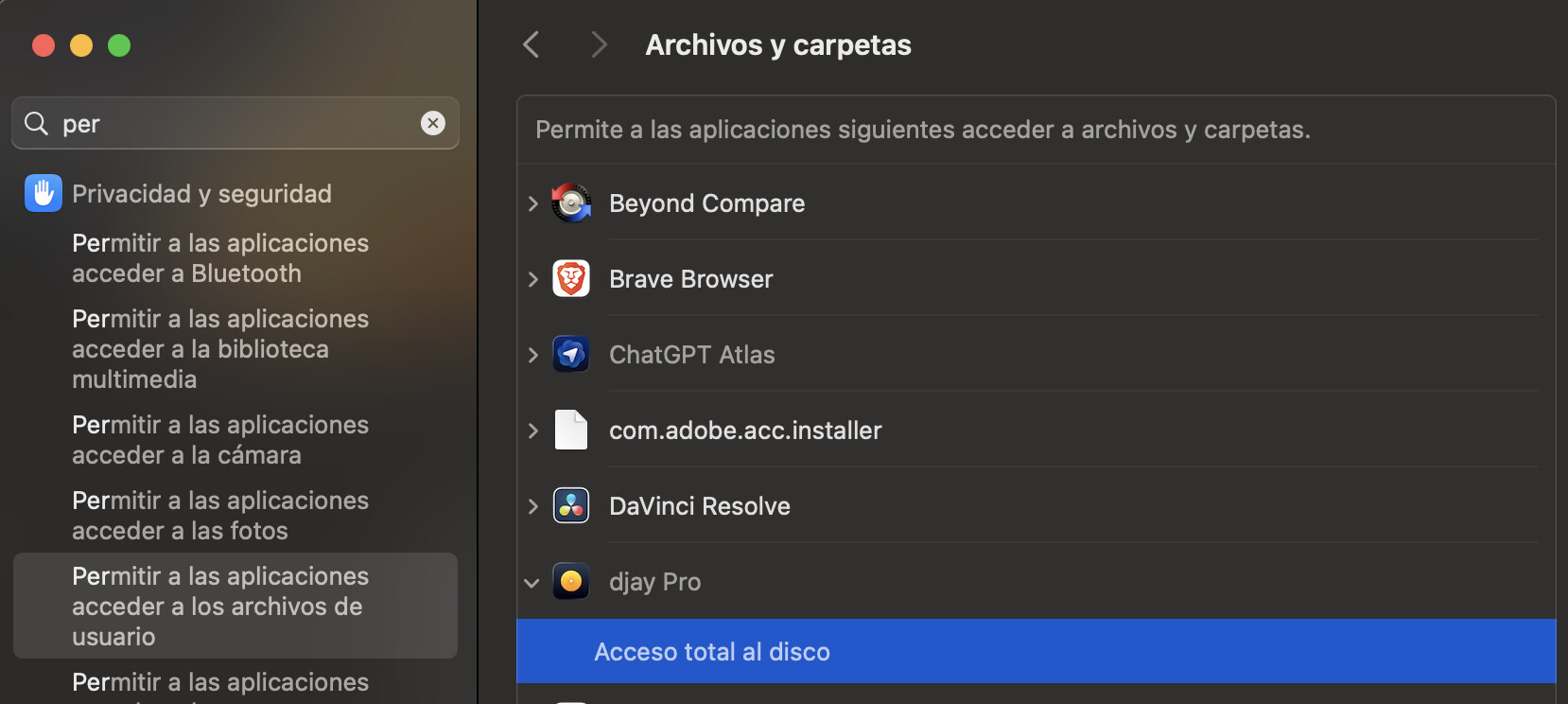
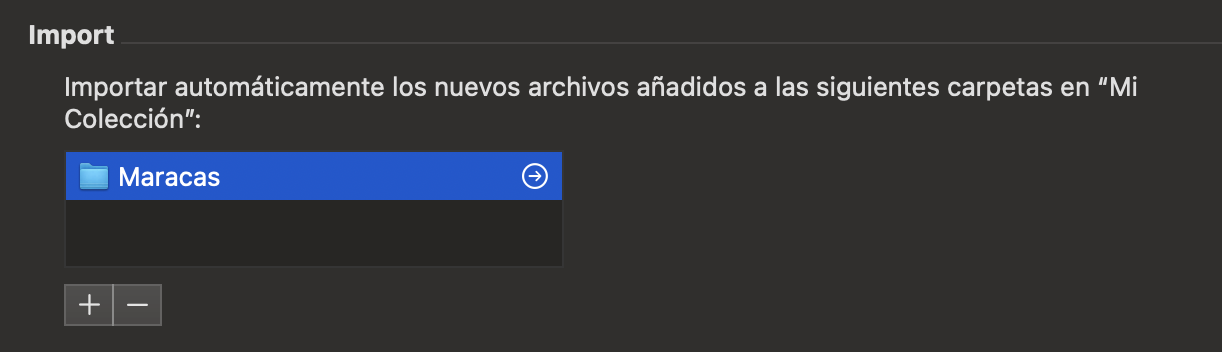
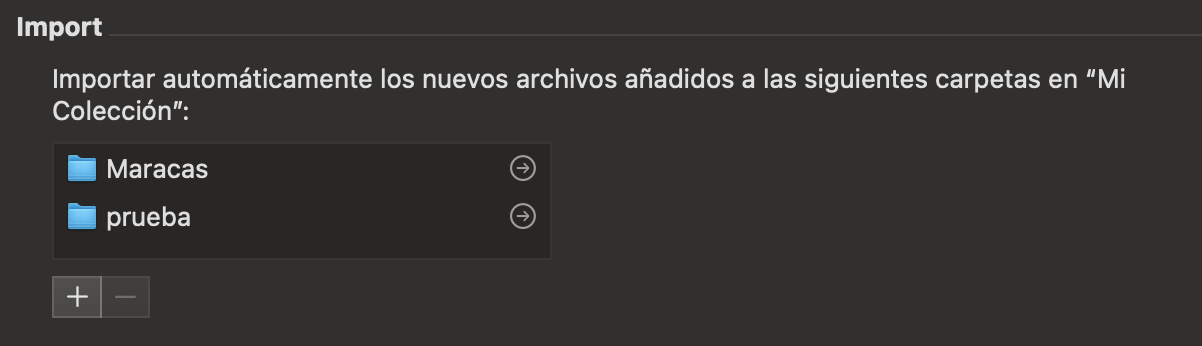
Further troubleshooting I performed:
-
New Folder Test: I tried creating a completely new folder on the SD card with a different name to rule out any path/naming issues.
-
File Permissions: I went into the folder properties and explicitly granted Read & Write permissions to the ‘Everyone’ group to rule out any file-level access restrictions.
Unfortunately, the result remains the same: Auto-import does not work.
Specific Observation: The only way I can get tracks to appear in the ‘Recently Added’ smart list is if I navigate to ‘My Files’, select the tracks manually, and add them to a standard playlist I created (which is named ‘my Collection’). However, the native automatic import into the main collection from the watched folder is definitely not triggering automatically.
My Question: Since another user mentioned that this works for them on an SD card, I am a bit puzzled. Given that all permissions are granted and the settings seem correct (as shown in the screenshots), what else could be preventing the software from detecting changes on this specific external volume? Could there be a subtle bug or perhaps a dependency on the File System format (e.g., APFS vs. exFAT) that affects how file events are reported to the app?
1 Like
Thanks for double checking and confirming @Albert_Maro . Sorry to hear that didn’t help. Thanks for the additional troubleshooting info, observations and screenshots. I’ll share this with the team to see if it helps them to reproduce the issue. I’ll report back when I hear back from them.
1 Like
Could be the case. FWIW my card is APFS… And I did nothing special (no permissions check / set or whatever).
1 Like
Hi again @Albert_Maro, can you please double check your drive format? I spoke with engineering. We only support watching volumes on filesystem types APFS or HFS+. FAT32 or exFAT is not supported. Thanks!
Hi again @Albert_Maro,
- Please backup your djay Media Library database and any custom MIDI mappings, then uninstall djay, download the latest version from the App Store and reinstall it.
- Then open Terminal and execute: mdutil -s /Volumes/YourSDCardName (type your SD card name instead). This will enable indexing of the drive. Then launch djay and test again. Thanks!
Hi @Slak_Jaw,
I have an interesting update. To clarify, I haven’t had time to follow the full troubleshooting steps you sent yet, but something changed today.
The Context: I recently updated my system to macOS Sequoia 15.7.3 (I’m holding off on the major version upgrade for now). However, the update itself did not immediately fix the issue. After the update, I continued with my usual workflow (Download → Tag in Mp3tag → Open Djay), and the auto-import was still failing. I had to import tracks manually as I’ve been doing since the SD migration.
The “Fix”: The change happened by accident. Unlike my usual routine, I downloaded a new track while Djay Pro was already OPEN. To my surprise, Djay detected the new file on the SD card and imported it instantly.
The Result: Since that specific moment, it seems the feature has ‘woken up’.
-
I tested adding another track while open: It worked.
-
I tested closing the app, adding a file, and reopening: It worked.
I will keep testing this over the next few days to confirm if it’s a permanent fix or just a temporary fluke, but for now, it’s working!
1 Like
Great! Hopefully it’s permanently solve now. Thanks for the updates @Albert_Maro


