


Like everything you’re doing and for listening to the community! I will be spending some good time with the demo over the next couple of weeks!
1 Like
Hey… Good question. I have not thought about the way Mixed in Key does auto-cues. I don’t have Mixed in Key.
However, my understanding is this… Mixed In Key writes its cue points into the file itself (as Serato-format cues). djay only reads those when it first imports a track. After that it keeps its own database as the master copy and never re-reads the file, so re-analysing an existing track doesn’t show up in djay. Re-adding the file “fixes” it only because djay creates a brand-new entry, and you lose the old entry’s history and cues.
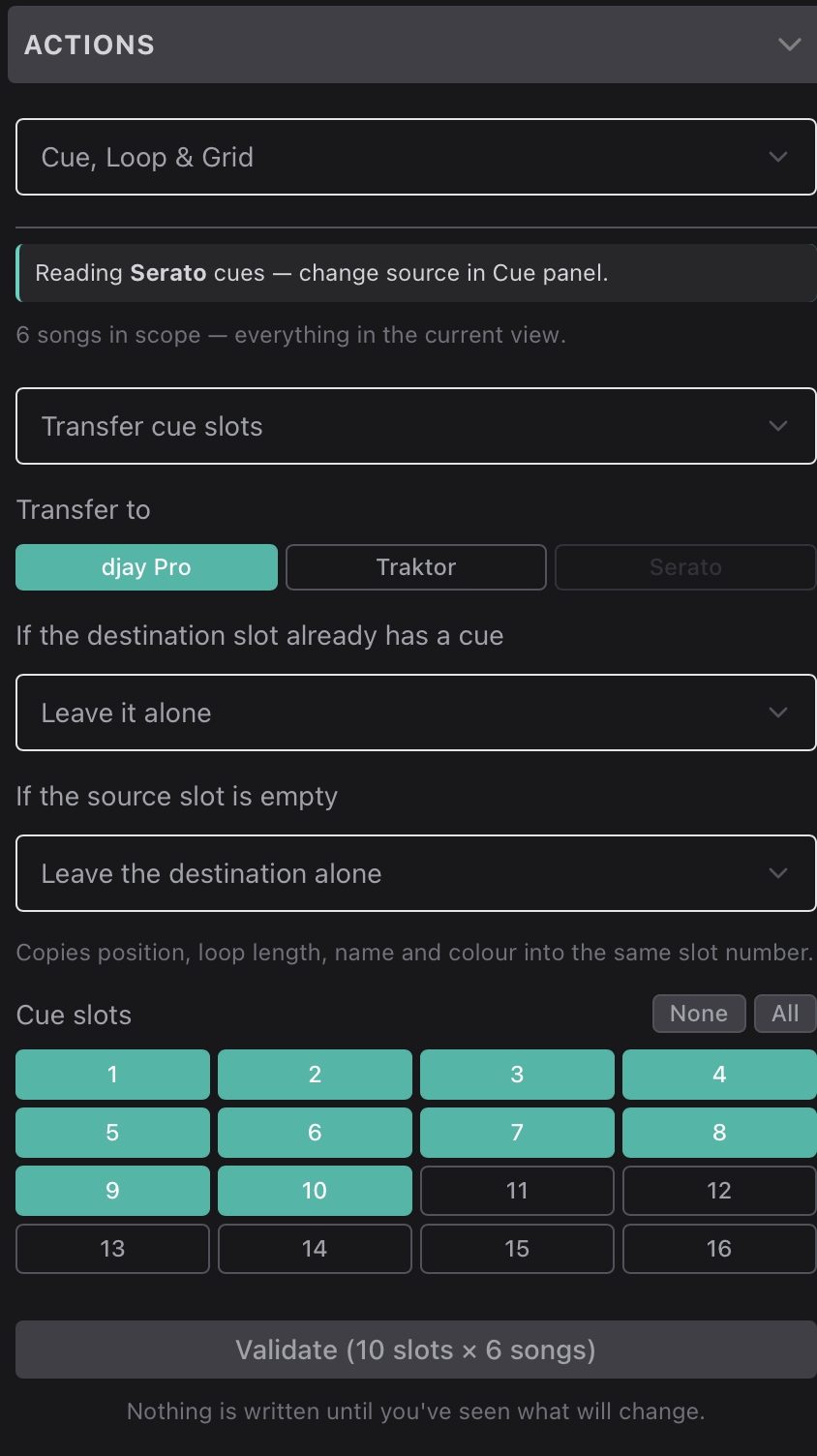
It is possible Tagami can already bridge that gap. However, I haven’t tried it with Mixed in Key. Since Mixed In Key’s cues live in the file as Serato cues, in Tagami you can use Actions → Cue, Loop & Grid → Transfer cue slots with Serato as the source and djay Pro as the destination. That writes them straight into your existing djay entries, with no re-import needed. See pic below for how you set it up. Just make sure djay is closed first. It’s worth doing a small batch of tracks first to check the result.
1 Like
I’m fed up waiting for DJay Pro to introduce a proper tagging system so now I’m looking at Tagami.
I’ve watched your video and read this thread and the main thing that stood out to me, as a DJay Pro user, was that DJay Pro (unlike, it seems, all the other main DJ apps) does not have a “reload metadata” option (or equivalent) in its own collection view, and therefore, if you prep your tags in Tagami, you HAVE to live in the external apps view in DJay Pro if you want to see and benefit from those tags.
Is that correct?
And if so, do I have to create my smart playlists in Tagami, as the DJay Pro smart playlists won’t be able to read the Tagami tags as it will be looking at the DJay Pro collection for that information?
If I have misunderstood this then I apologise and would appreciate a clear explanation!
Thanks
Hi Belford_Roxo, I’m sure you’ll get an official answer, but I’ll take the liberty to give you my 2 cents, being quite fond of tagami.
Basically you are right. There’s no smart playlist in djay. What I do is create smart playlists in tagami, then you can access them in djay. However, any playlist you have in Tagami, you can then simply add to the djay collection. So a smart playlist will not be able to update directly in djay. I use the tags to generate smart crates, basically.
The tagging, previews etc. are really useful in tagami though. I’ve moved completely over to tagami to build the playlist and only fine tune a bit in djay afterwards. I also set cues etc. in djay, but that is all read by tagami and visible there.
I like it, works well for me.
3 Likes
Hey Belford_Roxo,
My experience is that the DJAY collection metadata will update when you re-open the app. So if you make changes to the comments field in Tagami for example, you will need to re-open DJAY to see the changes. So, you don’t have to live in the external apps view.
You can organise your playlists in DJAY’s MyCollection and just edit tags in Tagami by setting Tagami up to read your DJAY collection. Again you’ll need to re-open DJAY to see changes. DJAY smart playlists will read Tagami’s tag edits. For example if you add a tag to the comments field in Tagami, a DJAY smart playlist will read that when you re-open the app.
The alternative way is to organise playlists in Tagami and edit your tags and then use the Export TRC for DJAY Pro. A one click menu option exports your Tagami collection so it is visible in the external apps section of DJAY. From the external apps section you can import playlists to your DJAY Collection.
You can do the same with the Music.app collection.
Or you can use all of the above methods together. Whatever works best for you.
Lastly, I should point out the video demo is out of date. The app has come a long way since then. I need to make a new video. There’s a free version that is worth exploring. It will allow you to test out making a tag edit in Tagami and viewing it in DJAY. Export library to DJAY external apps is a paid feature.
Hope this helps.
1 Like
@daniel_curley for you… v1.41 brings folders for comment, genre and filter preset panels!
It also brings in app updates @AzureArcher … but you’ll have to install the update one last time the manual way so it can work from 1.42.
@daniel_curley Folders…
For comments and genre… just use >> to create a folder
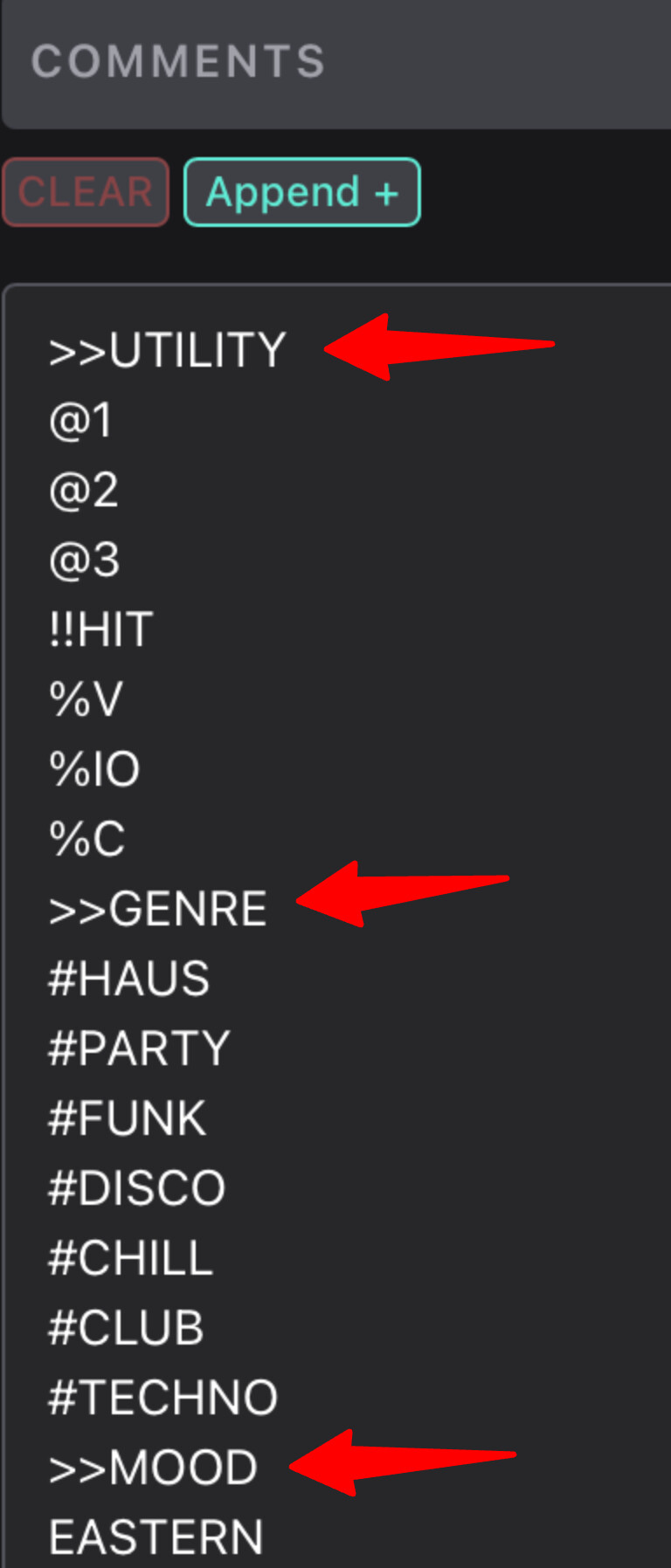
Save and get this…
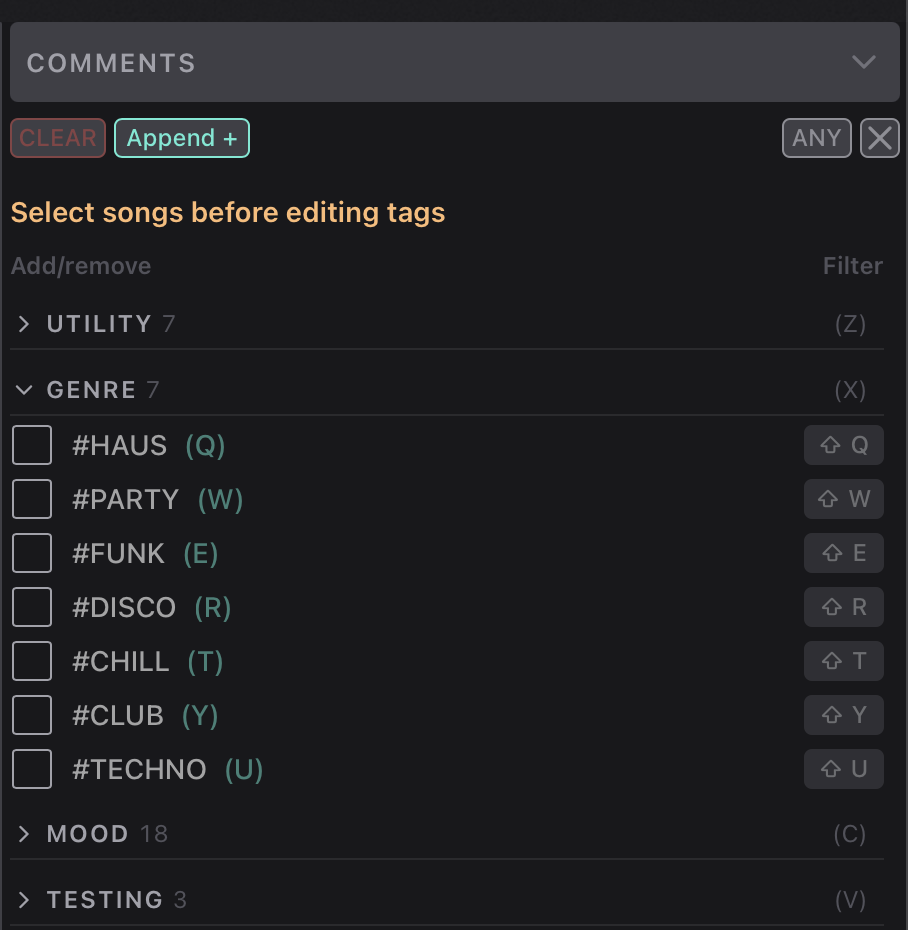
For smart filters it is a little different. use the folder icon to create a folder then re-order folders and filter presets in edit mode
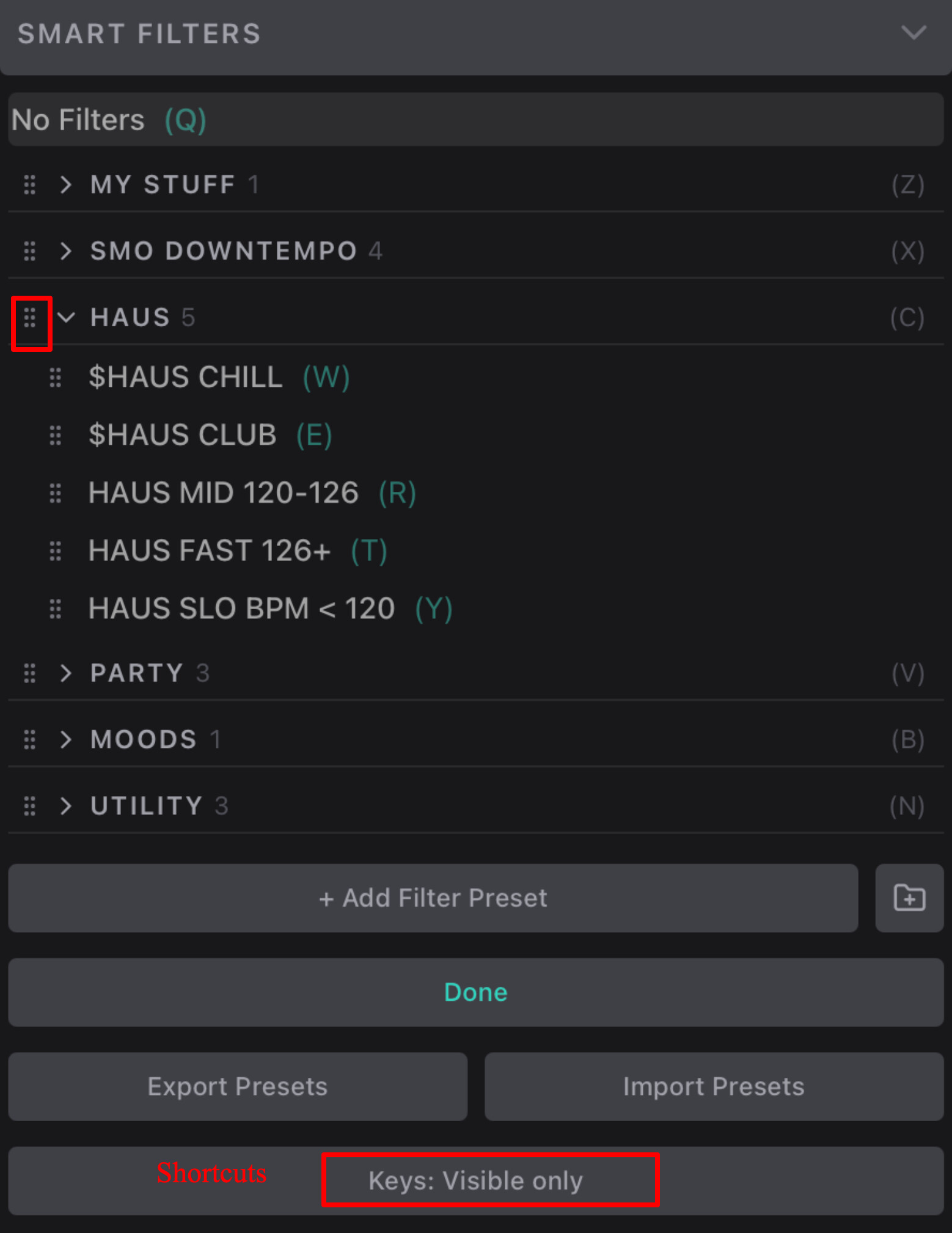
Save
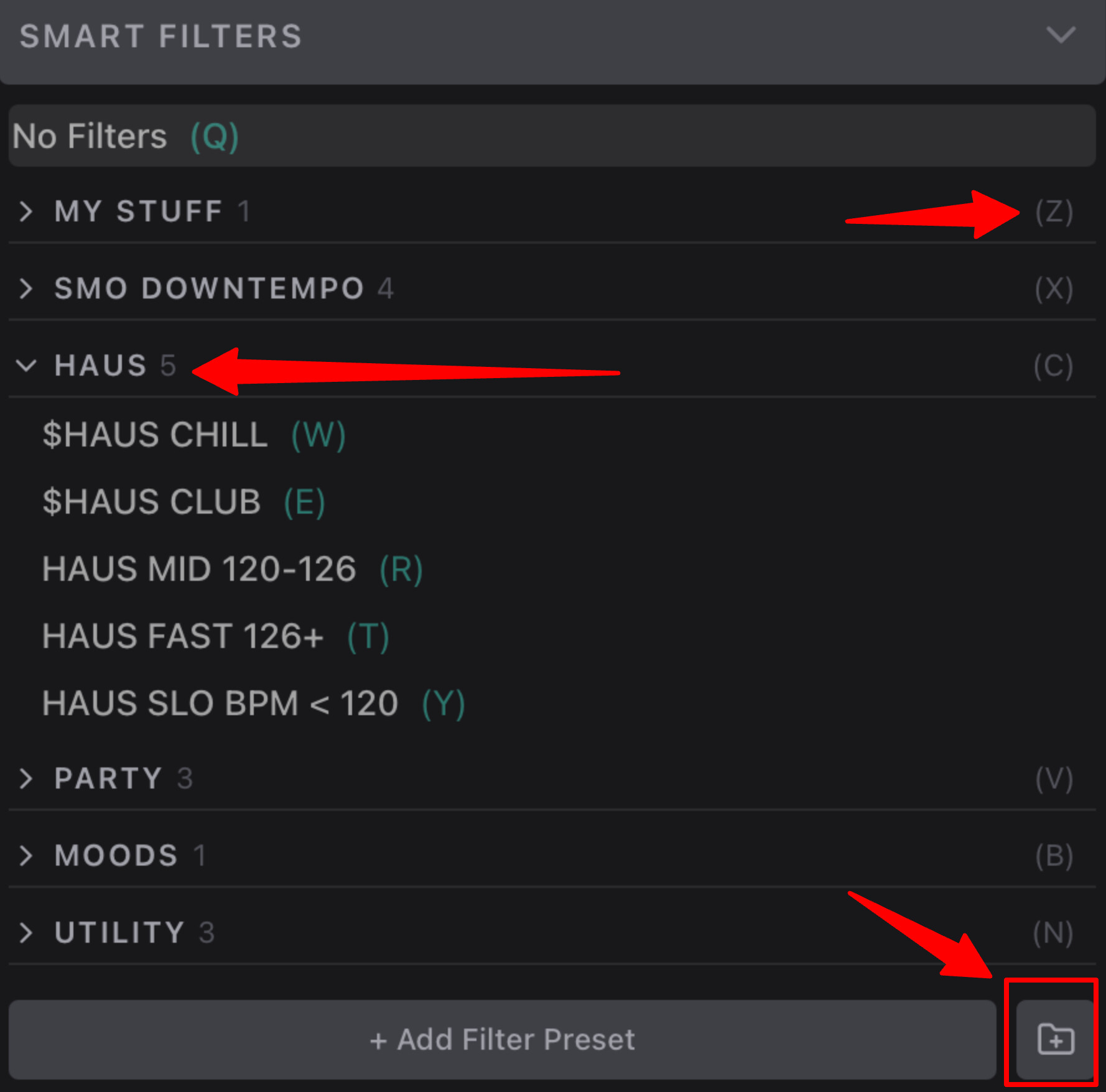
From the FAQ’s which you can access in the app using the question mark…
The Comment, Genre and Smart Filters side panels can group their lists into folders. Click a folder name to open or close it. Open and closed folders are remembered when you restart Tagami.
Comment and Genre panels
Click Edit tag list and type a line starting with >> where you want a folder to start, for example >>MOOD or >>INTENSITY. Every tag below that line, up to the next >> line, goes in the folder. Tags above the first >> line stay at the top, outside any folder. Folder lines are never added to your songs, and they don’t count towards the Tagami Free tag limit. Sort sorts the tags inside each folder and leaves the folders where they are.
When a folder is closed, a dot on its name shows that one of its hidden tags is on the selected songs (orange) or is being used as a filter (teal).
Smart Filters panel
Click the folder button next to + Add Filter Preset and give the folder a name. Hover over a folder to rename it (pencil) or delete it (trash). Deleting a folder doesn’t delete its presets: they move into the folder above it, or to the top of the list if it was the first folder.
To move presets into and out of folders, click Edit Filter Presets and drag them by their handles. Drag a folder’s handle to move the folder together with all its presets. Folders are included when you export filter presets and are recreated when you import them.
Keyboard shortcuts with folders
Each of the three panels has a Keys setting, found in Edit tag list or Edit Filter Presets:
• Fixed (the default) — every tag or preset keeps its key based on its place in the whole list, even when its folder is closed. The keys never change, but only the first 26 entries get one.
• Visible only — Q to L go to the tags or presets you can currently see, top to bottom, and Z, X, C, V, B, N, M open and close the first 7 folders. Close the folders you aren’t using and their keys go to the ones you are. In the Smart Filters panel Q is still No Filters, so presets start at W.
Visible only works best when each folder holds a handful of entries, so the open folders fit within Q to L.
2 Likes
Awesome stuff @rishi.
1 Like
nice! huge strides! just downloaded the free version for the first time, thank you!
1 Like


