NOTE: Please use the search function above before posting to avoid creating duplicate topics.
Device model iPad A16:
Version of operating system (e.g. iOS 18.7):
Version of djay (Latest 2026):
Hardware/controllers used (e.g. Hercules Impulse 500):
YOUR QUESTION:
I just bought the Hercules Impulse 500 controller. When i connect it to my iPad the Decks 1 and 2 are switched. So on the controller the track is playing on the left side but on the iPad it’s playing on the right side. And the crossfader is also wrong. So when i put the fader to the left it starts playing the track on the right and vice versa. Very weird.
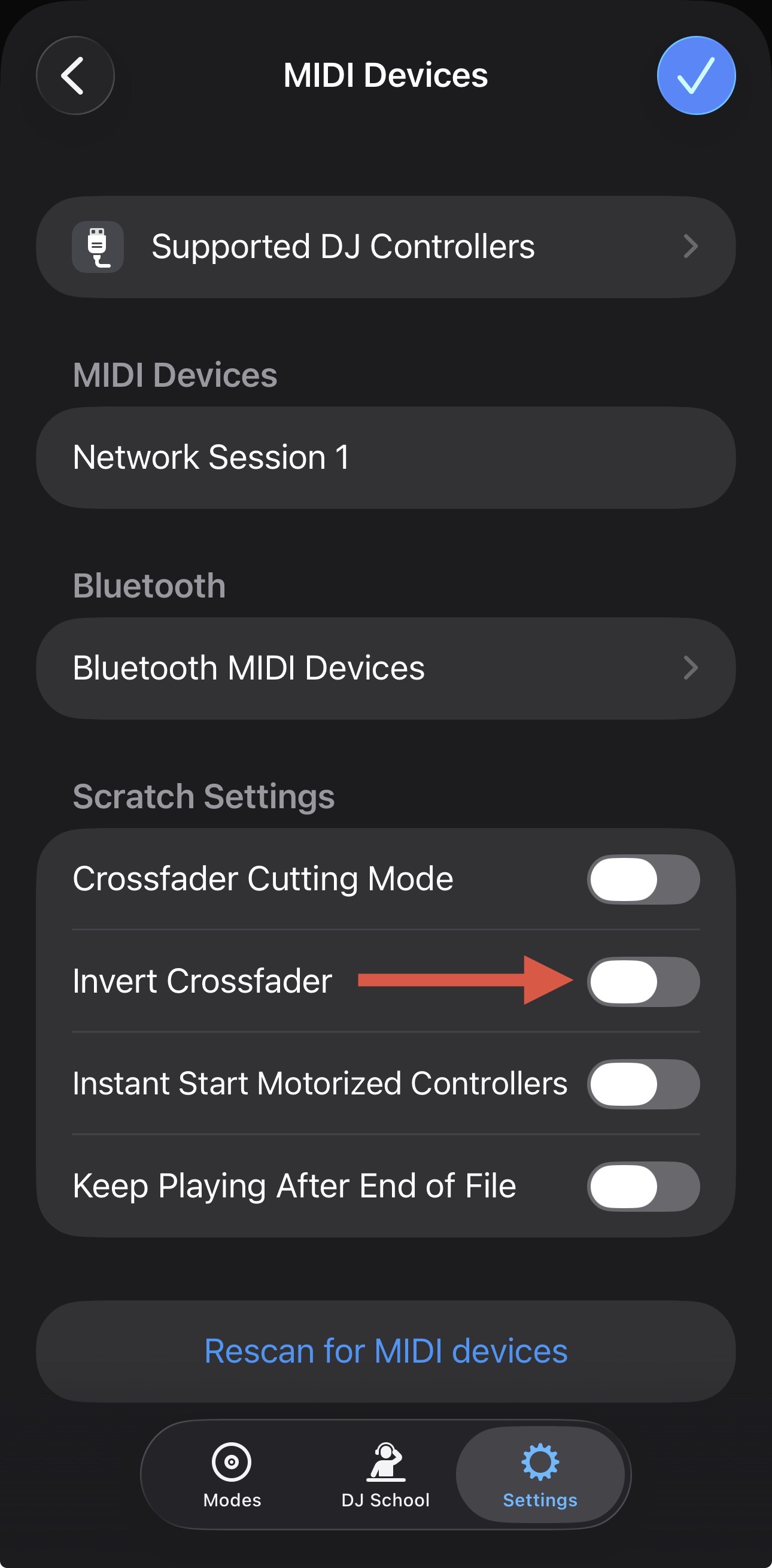
Hi @rhodoisland, welcome to the Community! Please navigate to the djay Settings>MIDI Devices>Scratch Settings and make sure Invert Crossfader is turned OFF. Thanks!
I will have to look into this another time. Was hoping to get this up and running for an upcoming festival next week but i will need to invest more time because it does’t seem to work out of the box.
Can send all the details after next week. Hope that is okay.
Sounds good @rhodoisland. Looking forward to hearing back from you. In the meantime, you could try the following:
1. Disconnect all cables and adapters from your iPad and DJ controller.
2. Close djay.
3. Perform a Forced Restart of your iPad.
4. After restarting, connect your powered USB-C hub to your iPad and confirm there is a blue peripheral icon in the top right of your iPad screen.
5. Connect your original Apple charger and cable to the USB-C hub and confirm that your iPad is charging.
6. Connect your DJ controller to the USB hub using a high-quality USB cable (ideally with dual ferrites on either end).
7. Confirm that your DJ controller powers up.
8. Launch djay.
9. Open the djay **Settings>MIDI Devices** and confirm that your controller is shown under MIDI DEVICES.
10. If not, scroll down to the bottom and press **Rescan for MIDI Devices**.
11. If this doesn’t work, unplug the USB cable from your DJ controller for a second then plug it back in.
12. If this doesn’t work, try a different USB cable.
Hello! It’s been a week since my last reply. I’m going to consider this topic completed for now so I can focus on others. However, please feel free to respond and we can definitely revisit this. Thanks!
No problem @rhodoisland. You’re welcome! Thanks for the follow up and glad to hear you were able to solve the issue.
Regarding OneLibrary, please refer to the following sections of the user manuals and let me know if these answer your questions or not. If not, yes, please create a new topic for this: