


Hi @Screma, here’s “Part 1” of the set-up - let me know when you have completed these steps:
Set-up of Traktor X1 Controller in Controller Editor
Loop Length Knobs
1.) Navigate to device in Controller Editor, in my example my device is called “Traktor Kontrol X1 MK2 – 1” (I own two X1s so I named them separately to avoid collisions in my MIDI mappings)
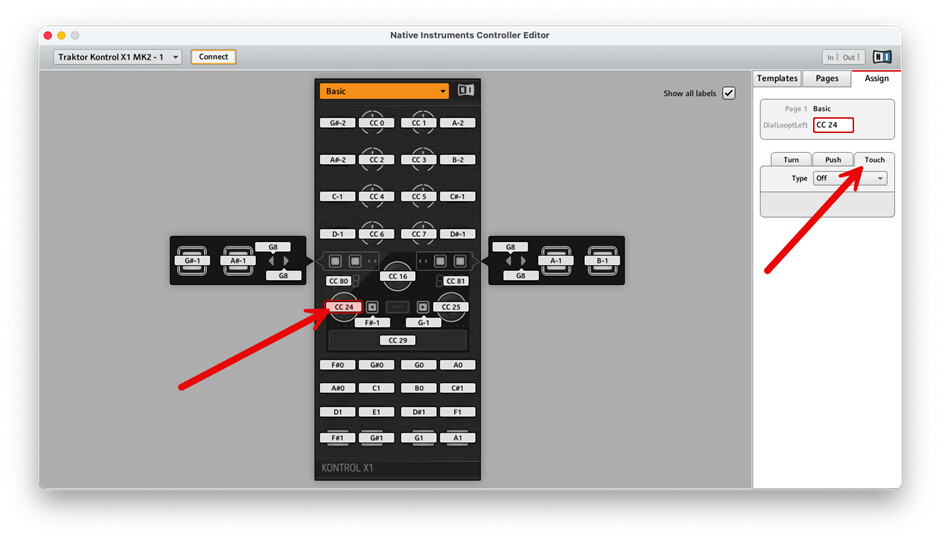
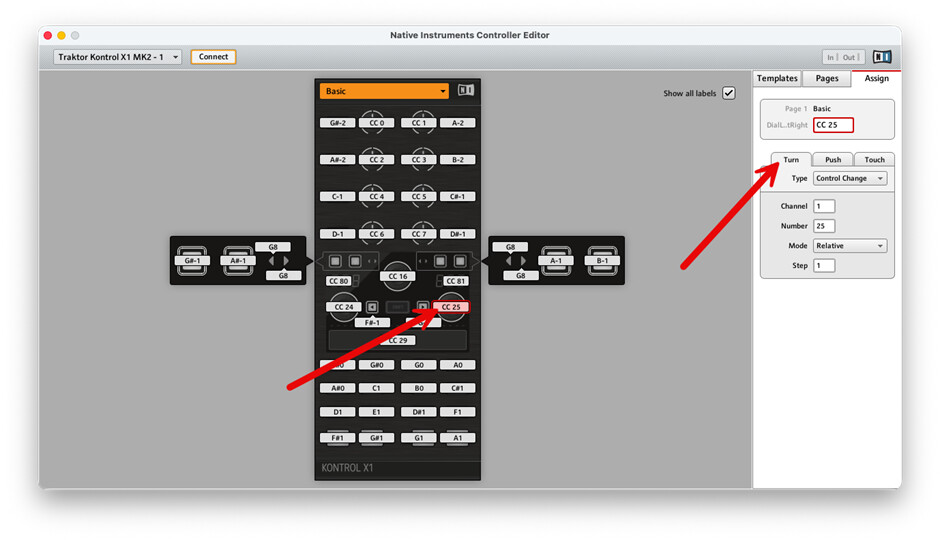
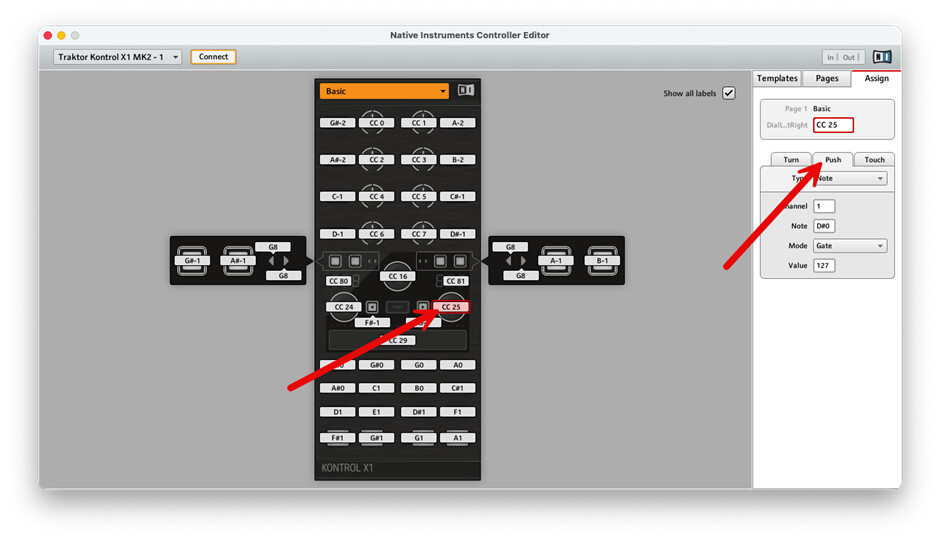
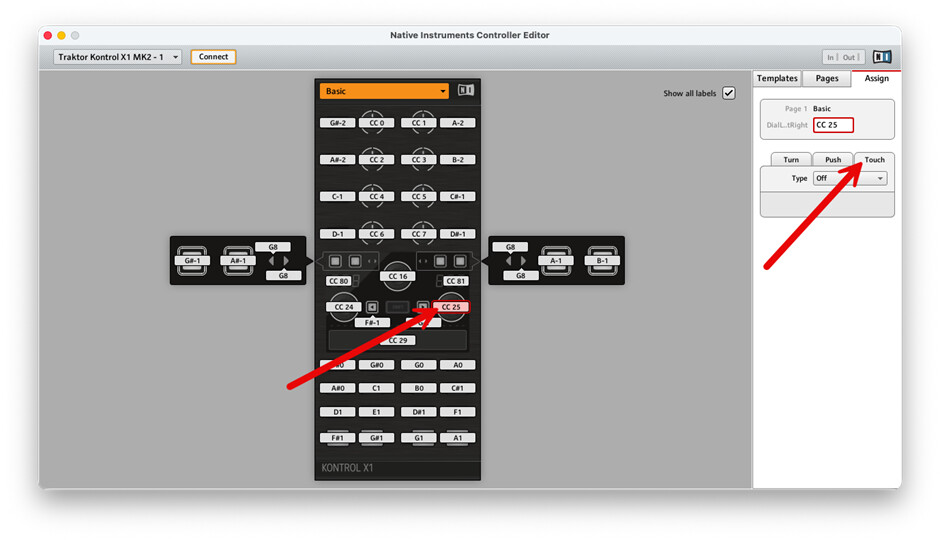
2.) Edit the “Assign” tabs for “Turn”, “Push” and “Touch” for both CC24 and CC25 which are the two Loop Length knobs. I believe these are the default values. If you have changed them, then be aware of this for the remainder of the configurations!
3.) Below are 6 screenshots that show how I have this configured for CC24 and CC25:
CC24
Turn

Push

Touch
CC25
Turn
Push
Touch
LED Displays
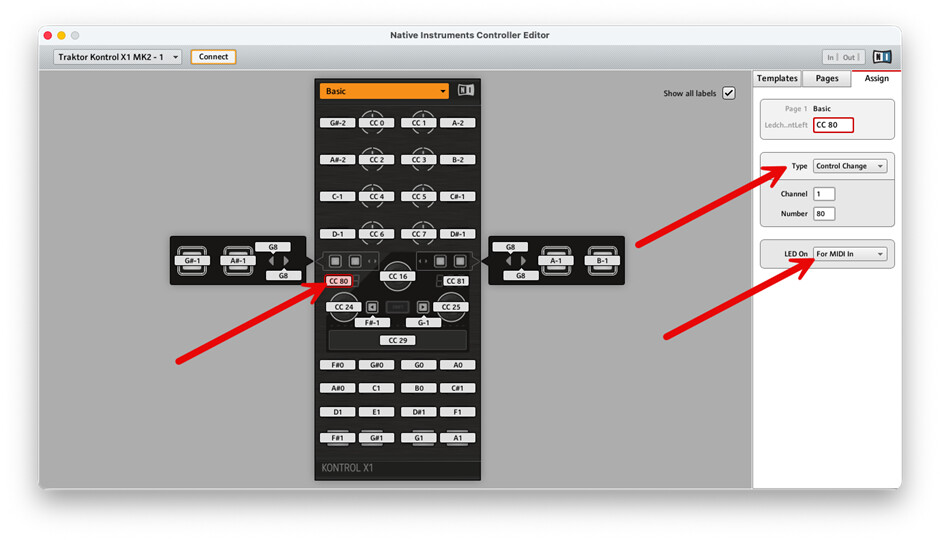
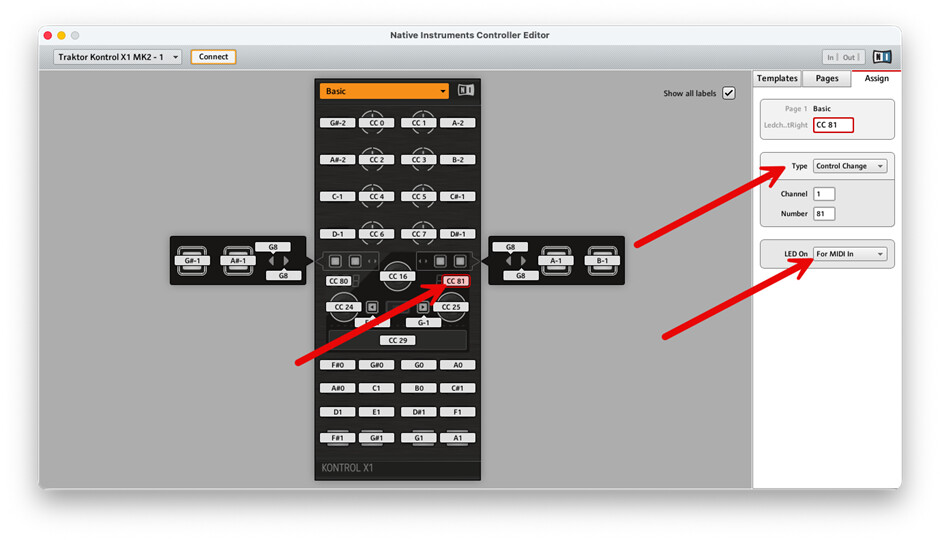
1.) Configure the LED Displays with an unused CC number, I used 80 and 81, with the LED display reacting to MIDI In (not MIDI Out!)
CC80
CC81
Set-up of IAC Driver in MacOS
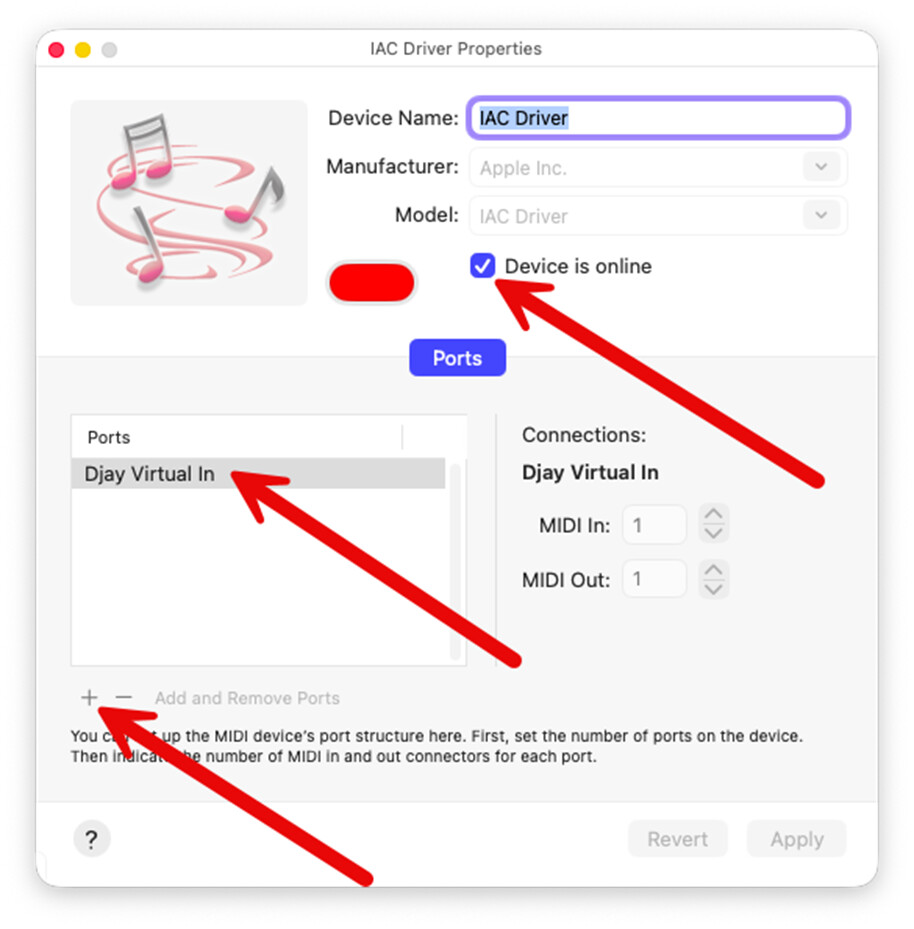
In order to create a chain of MIDI commands between devices, there is a built-in function in MacOS called the “IAC Driver” which needs to be enabled and have a (MIDI) Device name created.
1.) CMD + Space
2.) Type: Audio MIDI Setup
3.) Open it.
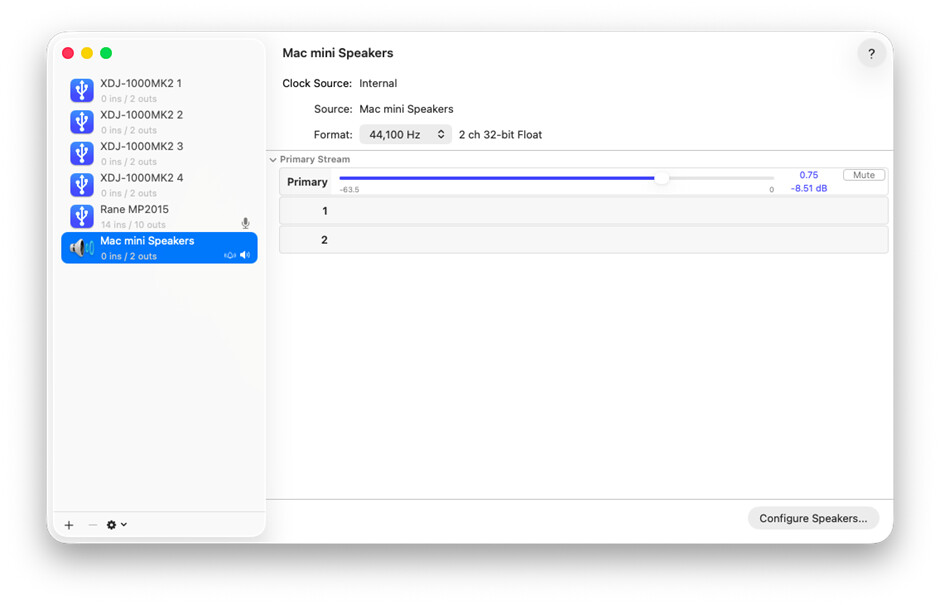
4.) Window → Show MIDI Studio
5.) Double-click on “IAC Driver”
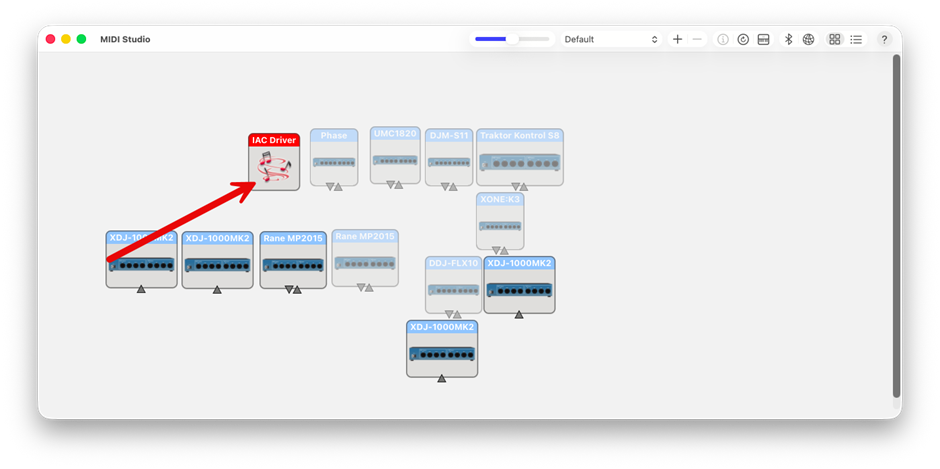
6.) Tick “Device is online”
7.) Then click + under Ports to add one.
8.) Name it something like: “Djay Virtual In”
9.) Click Apply / Close
10.) Done. You now have a virtual MIDI port available to all apps 
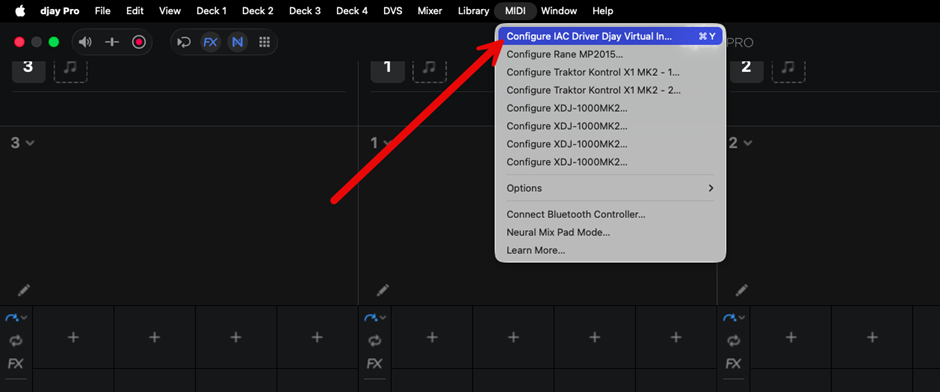
Check “Djay Virtual In” can be seen by Djay Pro
1.) Open Djay Pro (If it was open before the previous step, close it and re-open it)
2.) Navigate to MIDI, look for the new device called “Djay Virtual In”
Initial Set-up for Bome MIDI Translator Pro
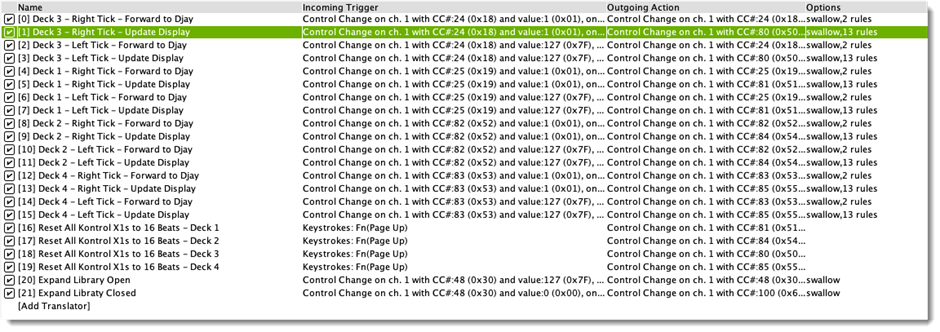
Bome MIDI Translator Pro is the software that will listen to your NI Kontrol X1s, and when you turn the Loop Length knobs (CC24 and CC25) it will update an internal state (which Loop Length is current), it will then update the LED Displays (CC80 and CC81) and then send a MIDI Out command to the virtual MIDI device called “Djay Virtual In”. This in turn (mind the pun!) will instruct Djay Pro to adjust the Loop Length.
1.) Install the Bome MIDI Translator Pro Trial software. You will get 20 minutes of functionality before you have to close it and re-open it.
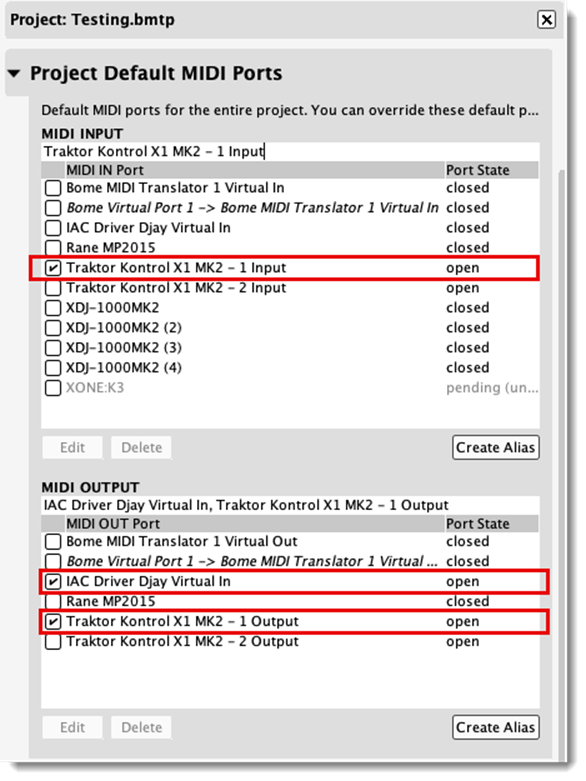
2.) When installed, open it and go to: MIDI → Project Default MIDI Ports
3.) Set:
MIDI INPUT
X1 Device
MIDI OUTPUT
IAC Driver Djay Virtual In
X1 Device
Stop Djay Listening Directly to the X1 Loop Length Knobs
At this point you need to check your existing MIDI mappings in Djay Pro to remove any existing entries for CC24 and CC25.
This is so that the X1 doesn’t interfere directly with Djay Pro. We now have our virtual MIDI device (using the IAC driver) doing that job for us.
Once you’ve got to this stage we are ready to start adding “Translators” to Bome which will feed the virtual MIDI device “Djay Virtual In”.
Then we can edit the MIDI Mappings for that device in Djay Pro to get it to adjust the Loop Lengths for us.
I hope this helps, let me know how you get on with this “Part 1”.
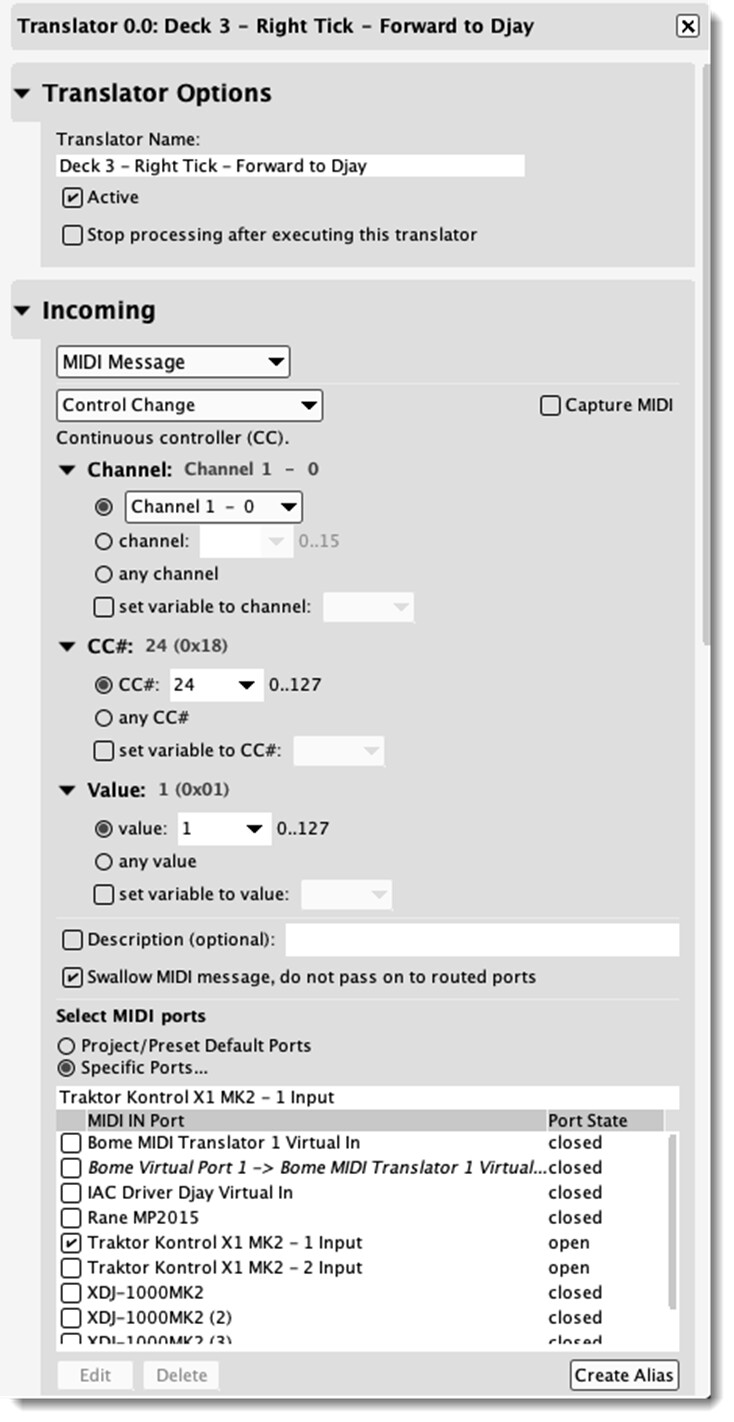
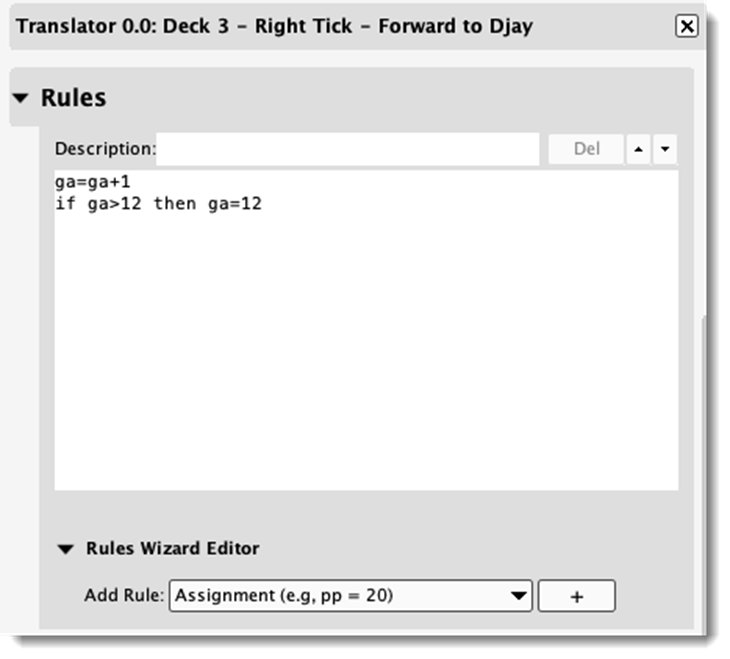
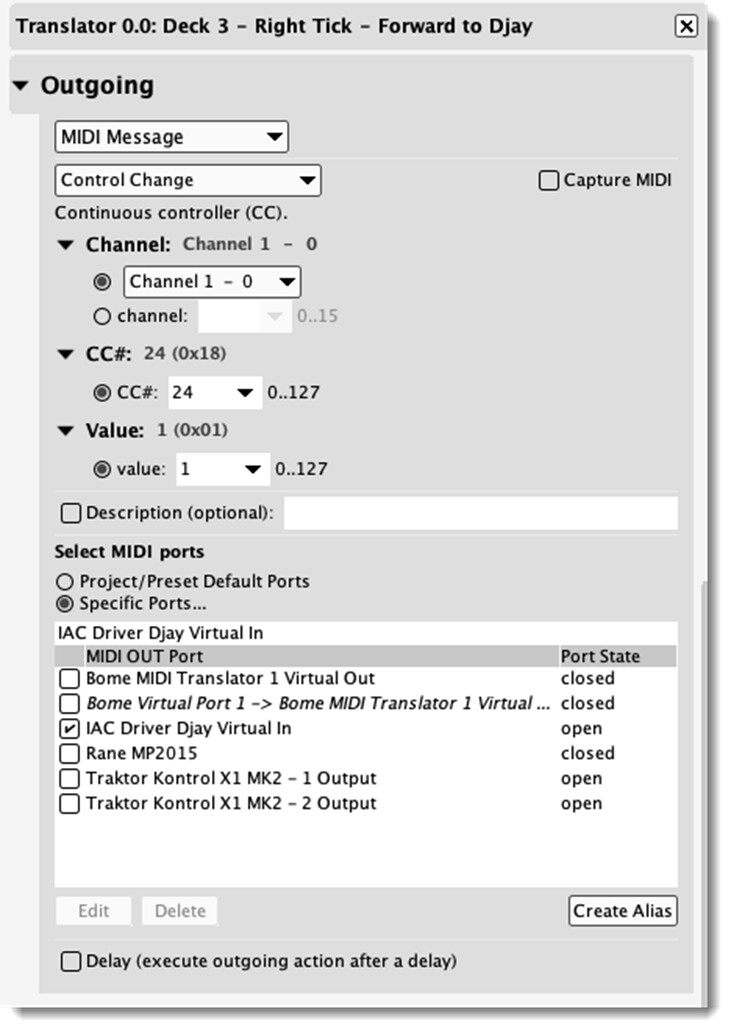
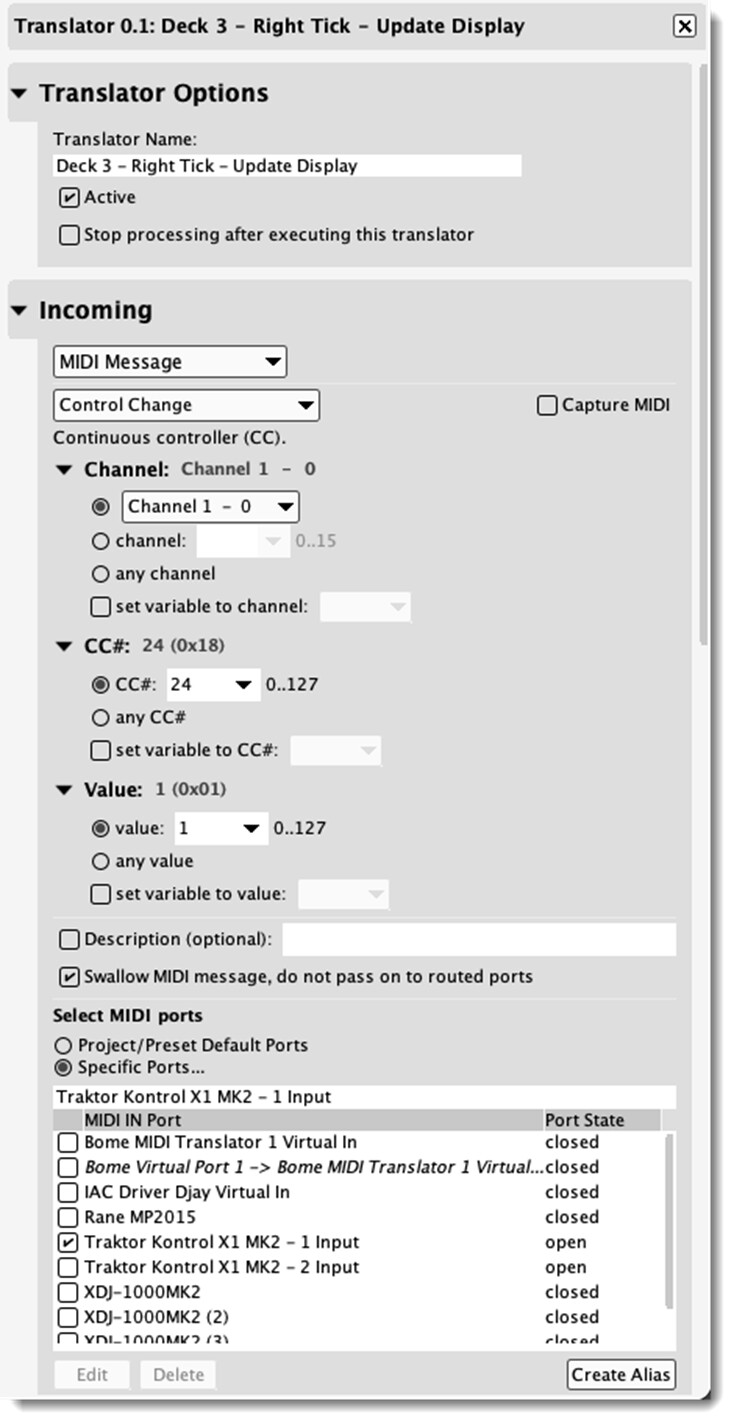


 lol. it still doesn’t feel right. Ahhh. Yeah, and the touch strip doesn’t work well for nudging in DJay Pro. The FX button usage


