NOTE: Please use the search function above before posting to avoid creating duplicate topics.
- Device model (e.g. 2020 iPad Air 4th Gen): 2024 MacBook Air M4
- Version of operating system (e.g. macOS 14.4.1): MacOS 27.0.1
- Version of djay (e.g. 5.1.2): 5.6.9
- Hardware/controllers used (e.g. Reloop Mixon 8 Pro): Pioneer DDJ-FLX10
- Hardware firmware version (e.g. 1.0.1):
- Please consider sharing a short video or screenshots to help clarify your issue
A) SUMMARY OF ISSUE:
-
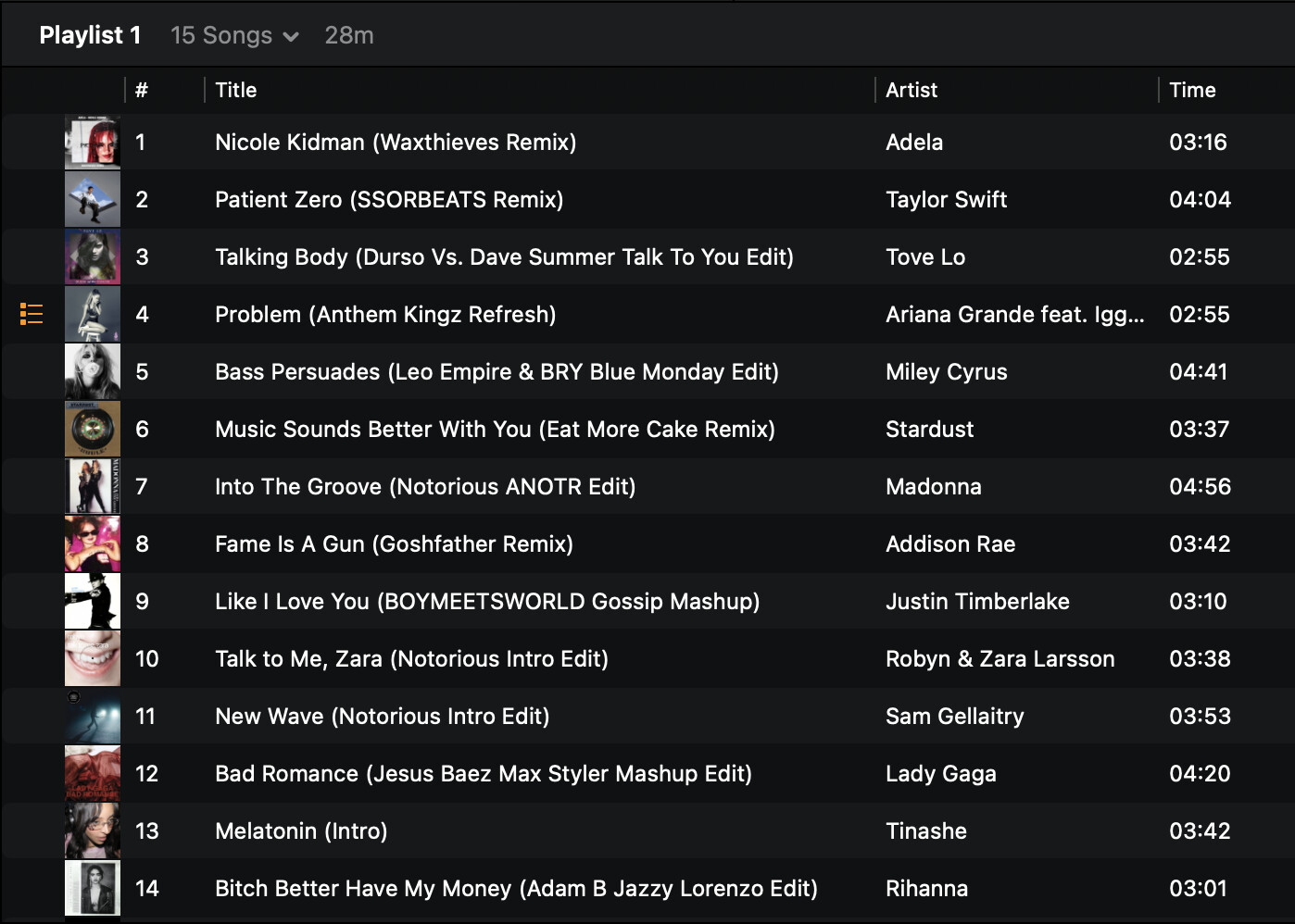
The indicator of the length of songs in the playlist next to the playlist title doesn’t accurately reflect the length of songs included in the playlist.
-
Note that I do have start/stop points added to the files, but the total length is approximately 1/2 of the combined length of tracks included, so that can’t be the culprit.
B) DETAILED STEPS TO REPRODUCE:
- Created a new playlist and added the songs to that playlist and same issue occurred.
C) EXPECTED RESULTS:
D) ACTUAL RESULTS:
- ~28 minutes (note there is one additional song in that playlist not visible in the screen shot due to scrolling, in case you try to add up the combined lengths on the screen shot; the additional track not visible is 3:14 in length)
Hi @Sean_McClafferty, thanks for the detailed report and the screenshot. Your math checks out. The 14 visible tracks plus the 3:14 one come to roughly 55 minutes, so 28m in the playlist header isn’t right.
- In Settings > Automix > Song range, is Maximum song play duration turned on? If so, what’s it set to?
- If you make a quick test playlist with 2–3 tracks that have no start/end points, does the total match their combined length?
- Are all 15 tracks local files? Does the total change after you run Analyze Songs from the drop-down next to the song count?
- Is this the only playlist you’ve noticed this on or is it all playlists?
In the meantime, if you need an accurate set length, you can export the playlist as a CSV and total the Time column in Numbers or Excel. I hope that helps!
@Sean_McClafferty thanks for running those tests so quickly, that really narrows it down.
Since totals look right for tracks without start/end points, those points seem to be what’s throwing the number off. You’re right, though, that trimming alone shouldn’t cut it in half, so let’s measure one track:
- Add a single track with start/end points to your test playlist.
- Let me know its full length, roughly where the start and end points sit, and what total the header shows.
- Were the points set in djay with Set Start / Set End?
That’ll tell us exactly how the total is being calculated. Thanks again!
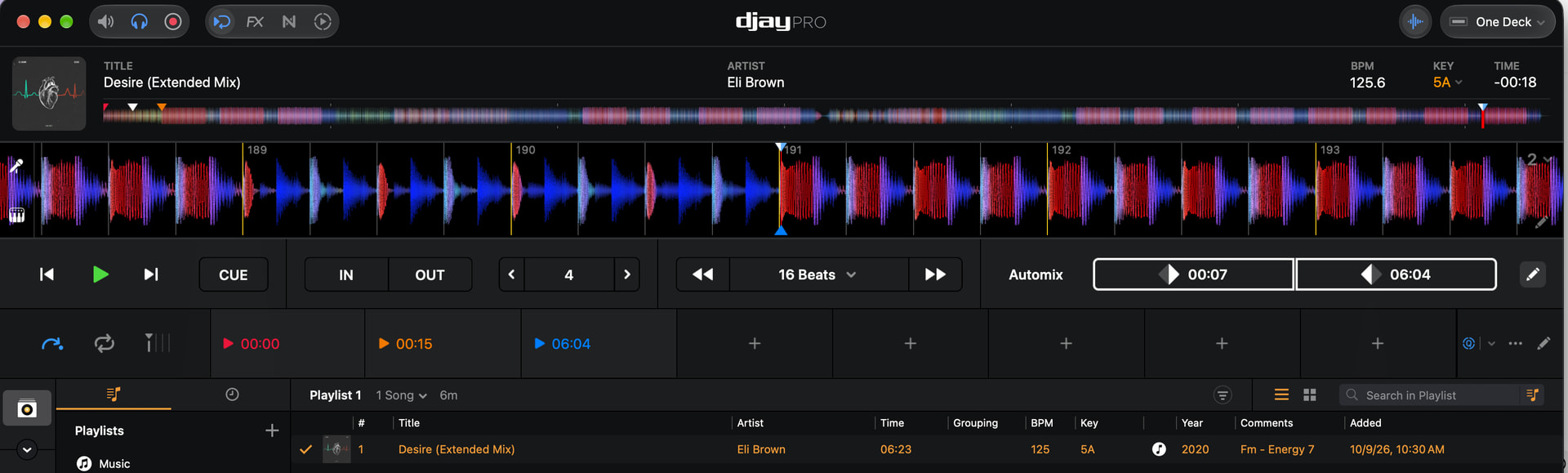
OK here’s a screen grab. The playlist length seems roughly correct assuming that it rounds up. Yes, all Set Start and End on my tracks were set in this view using the buttons to the right of the Automix section header.
Hi @Sean_McClafferty, that screenshot is exactly what I needed.
That track checks out. From your start point at 0:07 to your end point at 6:04 is 5:57, which the header rounds to 6m. So the total is counting the range between your start and end points, and it calculates correctly for this track. Something in the full playlist is pulling the total down, so let’s find which track:
- Add the tracks from the original playlist to your test playlist a few at a time, checking the total after each batch.
- When the total stops adding up, narrow it to the track that caused the drop and send a screenshot of it like this one.
- Also, does every track in the original playlist have both a start and an end point, or do some have only one?
Thanks!
Ok this is odd and probably going to be hard to explain.
When I started adding one by one, it was thrown off pretty quickly by a song that had no Start/End points set.
To see if that was the issue, I deleted it from the playlist and added another from the original list that does have Start/End. The list didn’t change length in the header bar.
Then I added an additional song to the playlist that didn’t have Start/End, and the playlist header changed to include the length of the song added (but not the previous one that didn’t impact the total at all.)
In other words, I don’t think it’s the Start/End that’s causing the problem.
As a result, I’m unsure what to send an image of. (And hopefully that makes sense.)
Hi @Sean_McClafferty that makes sense, and it’s a really useful finding. It looks like some tracks just aren’t being counted toward the total at all, whether they have start/end points or not. Let’s pin down one of those:
- Put the track that didn’t change the total into a new, empty playlist. Does the header show its length, or 0m?
- Click to a different playlist and back, or quit and reopen djay. Does the total update?
- Load that track onto a deck, then check the header again.
Also, what file type is that track (MP3, AAC, WAV, etc.), and is it on your internal drive or an external one? If you can, compare it with one of the tracks that does count. Is it from a streaming service by chance? If so which one?
For the screenshot, the playlist row for that track is perfect. Right-click the column headers and turn on Kind if it’s available. Thanks for being so thorough!
Thanks for working this through with me. Also, aren’t you on vacation? This isn’t urgent so you can deal with it later! 
So a length of the playlist doesn’t show up at all actually.
It’s an m4a file local on my hard drive. None of the files that I’m having issues with – and actually none of the files in the app at all – are streaming. Everything is a local file. I don’t trust wifi at a gig.
Some of the files might have been synced to my computer through Apple Music. But the example above definitely was not as its a mashup I made on this same device.
Kind didn’t show up as an option for me in the column list.
You’re welcome @Sean_McClafferty. Yeah, I’m technically on vacation, but I’m almost always here regardless.
Great find - that’s the one we were looking for. No worries about the Kind column, that was my mistake. Since the Time column shows 4:56 for this track but the header shows nothing, djay is reading its length in one place but not the other. A couple more quick checks:
- Quit and reopen djay, then check that playlist again. Does a length appear?
- Load the track onto a deck, then look at the header again.
- Which app did you export the mashup from? In Finder, right-click the file > Get Info > More Info will show whether it’s AAC or Apple Lossless.
If you’re comfortable with it, could you also send me that file via a DM? Testing with the actual file is the fastest way for our team to track this down. Thanks!
Answers in order:
- Length doesn’t appear following quit and restart.
- I loaded track to a deck. No change in the playlist.
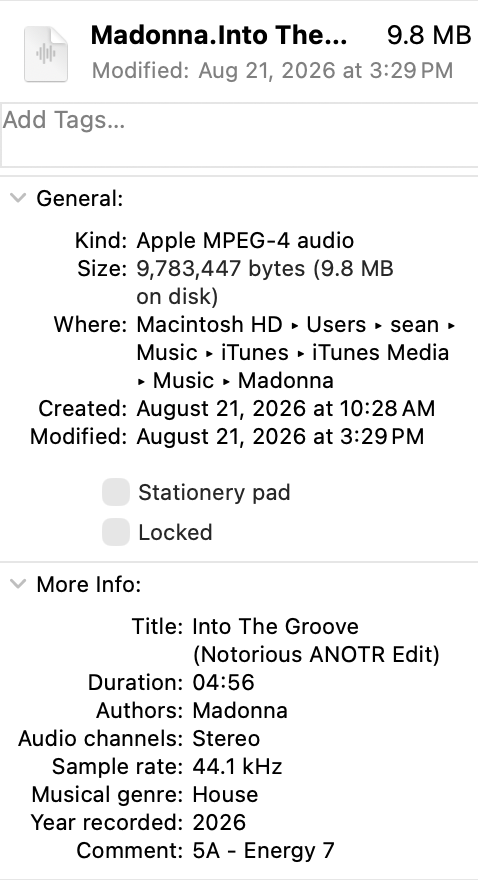
- The song was created in and exported from Logic Pro as a wav file and then converted to an m4a file using the file. The m4a file is what is in the playlist. I uploaded the Get Info window for you.
Will send you the file via DM.
Hi @Sean_McClafferty, thanks for the Get Info and the file, that helps a lot.
I checked the file and it’s healthy. It reports 4:56 everywhere it stores a length, so djay shouldn’t have trouble reading it. What stands out is where it lives: your Music > iTunes > iTunes Media folder. That means it’s part of your Music app library, even though it didn’t come from Apple Music.
Can you try one more thing?
- Make a new, empty playlist in My Collection.
- Drag the m4a straight from Finder into it. Does the header show about 5m?
- When you converted the WAV, was that in the Music app (File > Convert > Create AAC Version)? And did you originally add it to djay from djay’s Music source or from Finder?
If the Finder-added copy counts, that’s also your workaround for now. Thanks again!
OK here’s what I found out.
- I drug the same file I PM’d you into a new playlist from the Finder. No length shown at all for the playlist.
- Deleted that playlist and added an MP3 I got from my record pool into a new playlist. Length shows up.
- Deleted that playlist and added another m4a that I made in the same way as the file I sent (recorded in Logic Pro, exported to WAV, converted through the Finder) into a new playlist. Length showed up.
I converted the WAV in the Finder directly using a Quick Action from the Mac native automator app. Basically lets you right click the file and convert to m4a directly from the Finder. Like I said, the second file was created and encoded to m4a the same way, leading me to believe that’s not the issue.
If it helps, all of my music lives in user/sean/music/itunes/itunes media/music.
Hey @Sean_McClafferty, really appreciate you testing all of that. Since your other m4a made the same way shows its length, the encoding process looks fine. This seems specific to that one file or how djay has it stored. Next time I’m at my computer, I’ll try to test the file you sent on my end to see which it is.
Two quick questions in the meantime:
- Did you run this track through Mixed In Key? The file has its key and energy tags. If so, was it already in djay before that?
- Could you DM me the other m4a, the one that counts? Comparing the two side by side would help a lot.
Thanks!
Okay I checked that file you sent on my Mac and it shows the proper duration at the top of the playlist.
Honestly, I’m not sure if it was in Djay before or after I used MIK. My gut would be before but I’m not 100% sure. My use of MIK is a little sporadic but I’m trying to be better about it now.
I’ll PM you the other file now.
Hey @Sean_McClafferty, thanks for sending that over. I compared the two files and they’re built the same way, and your Madonna track shows the correct length when I test it on my Mac. So the files are fine. It looks like djay’s stored entry for that track on your Mac just isn’t holding its length.
Could you try this with that one track?
- Right-click it in My Collection and delete it from your collection.
- Drag the file back in from Finder and add it to a test playlist.
- Check whether the playlist length shows up now.
Removing it from My Collection also takes it out of your playlists, so you’ll need to add it back to those afterwards.
If that fixes it, the same steps should work for the other tracks that aren’t counting.
OK yes, that did work. Thanks for your help!
Excellent! You’re welcome @Sean_McClafferty.