NOTE: Please use the search function above before posting to avoid creating duplicate topics.
-
Device model: DDJ-SR2
-
Version of operating system: Windows 11 25H2
-
Version of djay: Serato 4.0.7
-
Hardware/controllers used: Pioneer DDJ-SR2
-
I have been having this issue for several month. In the middle of mixing session, randomly, the output sound along with headset sound would start to get distorted and sound scratchy until it gets garbled all together in the span of seconds. Re-loading the song does not help. The only way to get out of it is to unplug USB cable and plug back in to re-establish the connection with Serato. Happens randomly, but more and more frequently. Which is unacceptable at live gigs.
Windows 11 runs on all latest updates.
Serato in on the latest version. Did complete and fresh re-install, as well.
Tried the second USB port on PC, same issue.
Uninstalled and re-installed DDJ drivers, issue came back.
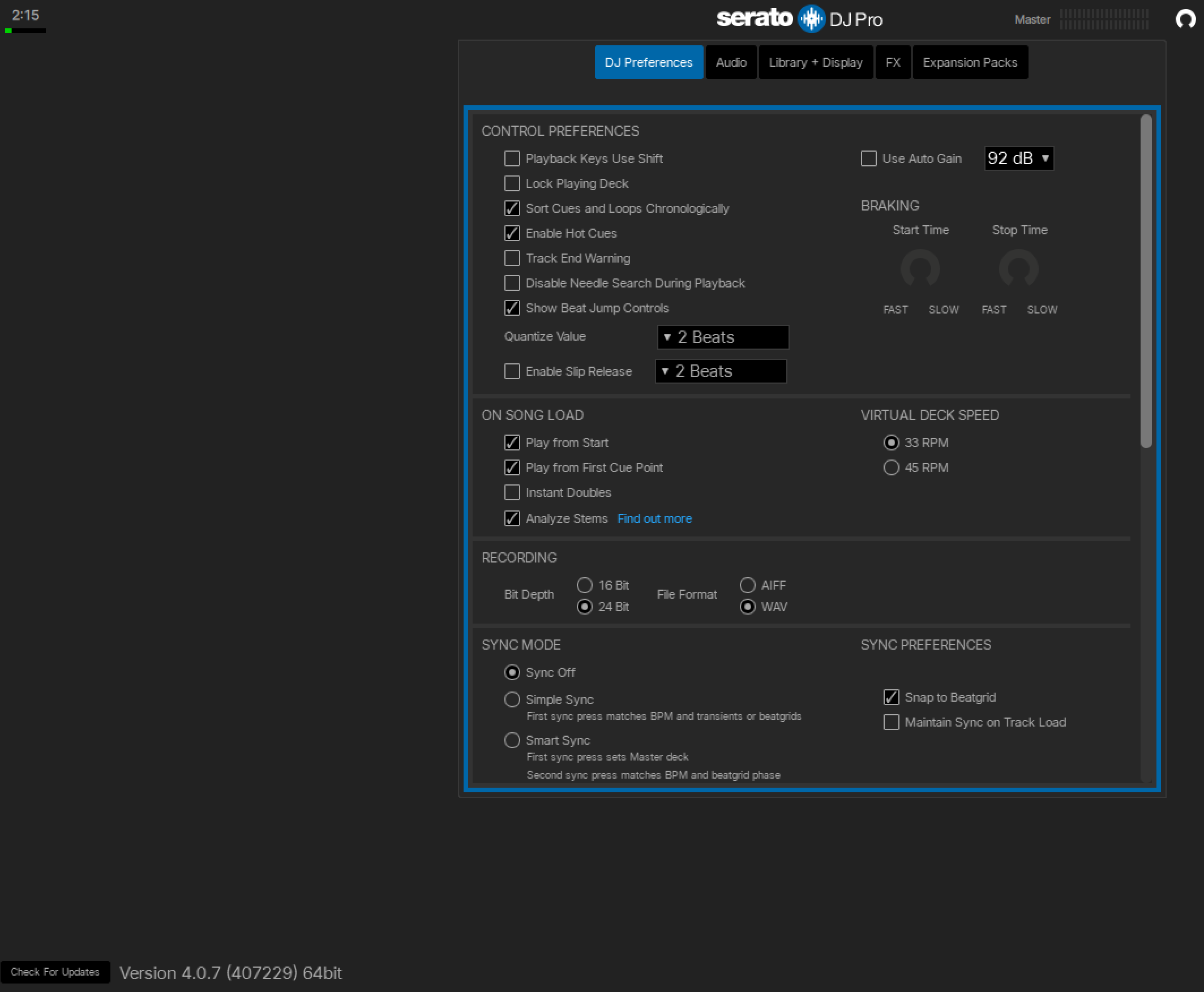
Saw someone in forums suggest to uncheck “Auto Gain” in Serato, i did, same issue.
USB buffer size latency is set to 1sec in Serato
Please help!!!
Hi @Veronika_St_Gilles, welcome to the Community! However, you seem to have found the wrong community. This forum is for Algoriddim djay only.
Based on your description of the problem though, this sounds like a buffer issue or poor quality USB cable. I recommend you increase the buffer size in the Serato Settings to reduce the load on you CPU. If that doesn’t work, I recommend you purchase a high-quality USB cable designed specifically for DJing - I personally use the Chroma Cable from DJ TechTools.
How to Adjust Buffer Size
- Open Serato DJ Pro and click the Setup (gear icon) button.
- Navigate to the Audio tab.
- Locate the USB Buffer Size slider.
- Adjust the slider:
- Move Left (Lower): Decreases latency (faster response), but increases CPU load.
- Move Right (Higher): Increases latency (slower response), but eases CPU load, improving stability.
- Windows Users: You may need to click “Launch Driver Panel” to adjust the buffer size in your ASIO driver panel.
Tips for Optimizing
- Find the balance: Set the slider to the lowest possible value that does not result in distorted sound or audio dropouts.
- Fixing Glitches: If you experience audio dropouts, distortion, or skipping, increase the buffer size to a higher value.
- When to lower: If you need extremely tight response for quick scratch techniques and have a powerful computer, try lower settings (1–5ms).
- USB Connectivity: Using a direct USB connection (no hub) and a high-quality cable helps maintain stability at lower latency settings.