Swap Performance Pad Mode shift layer

  • Device model: Apple iPad Air M3
  • Version of operating system: iPadOS 26.2
  • Version of djay: 5.6.1
  • Hardware/controllers used: AlphaTheta DDJ-GRV6
  • Hardware firmware version: (sorry, unknown)

YOUR QUESTION:

Bit of a long shot…

Is it possible to swap the mapping of an existing button? :thinking:

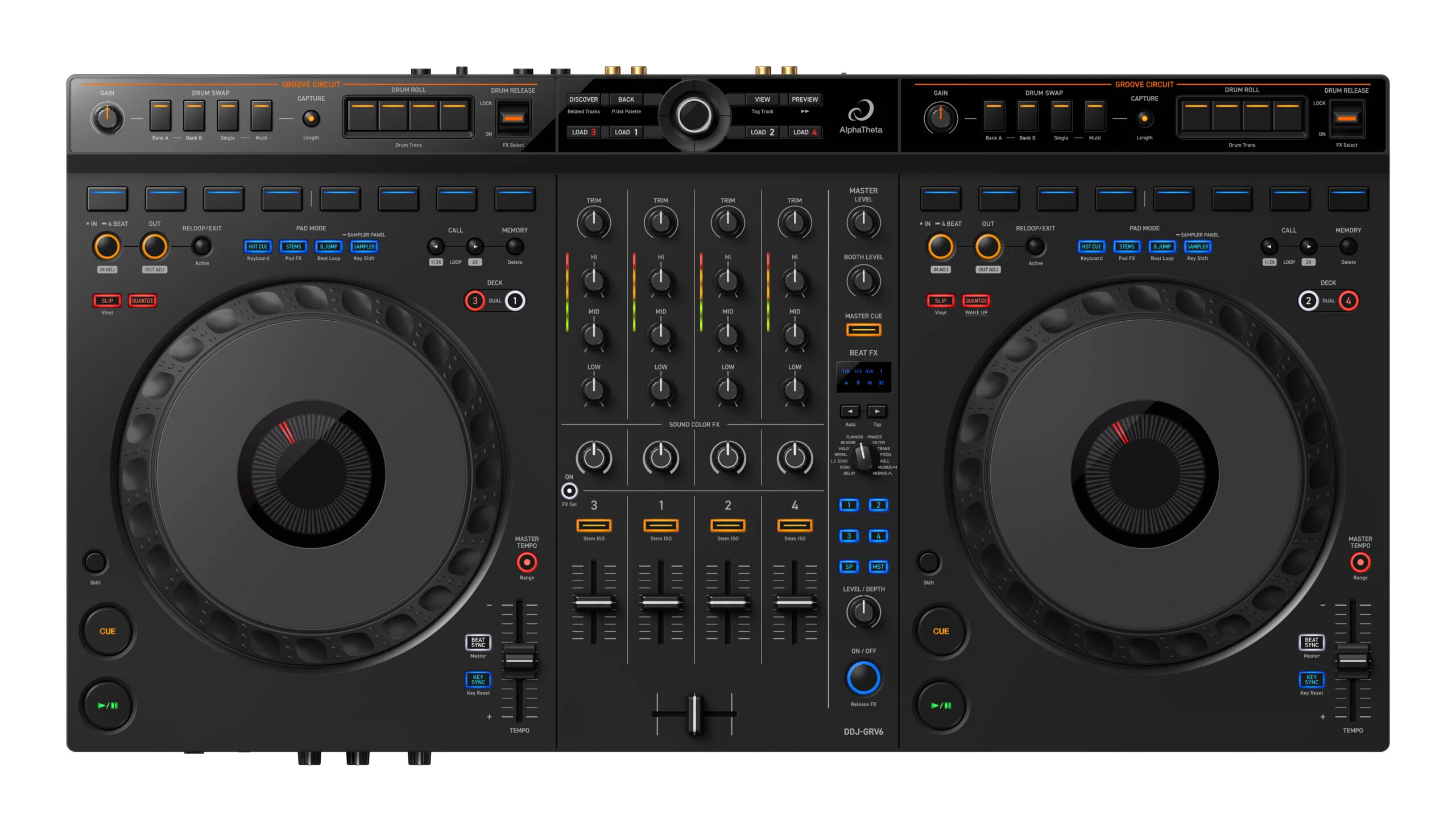
I have the DDJ-GRV6:

I find myself using the Pad FX functions more than I use the STEMS functions.

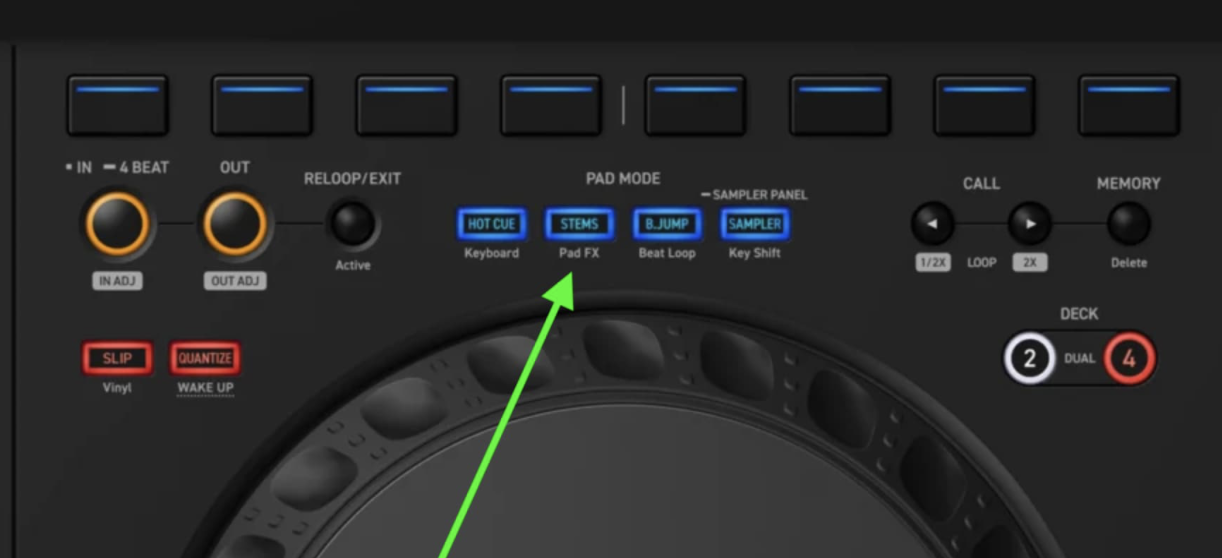
To get to Pad FX on my controller I need to press Shift + STEMS button:
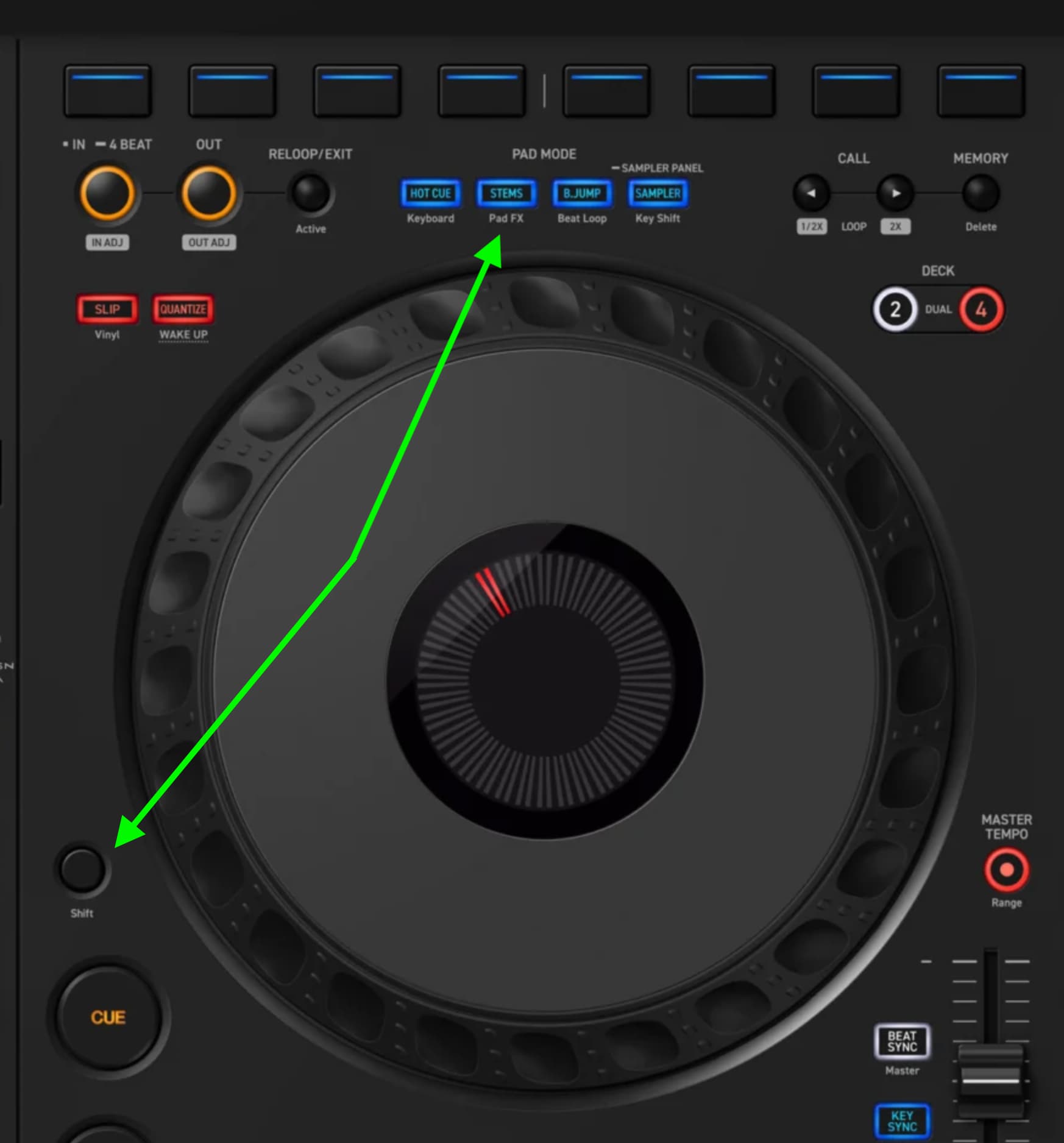
Given the distance from the Shift button to the STEMS button, it’s a two-handed operation.

Is there a way I can copy / paste / edit the existing mapping of the STEMS button to essentially inverse or swap this button around, so a single press enables Pad FX and a shift-press enables STEMS? :thinking:

Could this type of mapping be found in an XML file somewhere? It’s my understanding that xml editing is largely unsupported by Algoriddim, and given the high risk of breaking things I can see why, but if something like this could be found in an XML file somewhere I might take some full backups of the iPad and dive in :nerd_face:

Would anyone know if I might 1) likely find this mapping in an XML file and 2) where might that file live on an iPad and 3) could I make a simple edit in a plain text editor to flip the mapping of this button around?

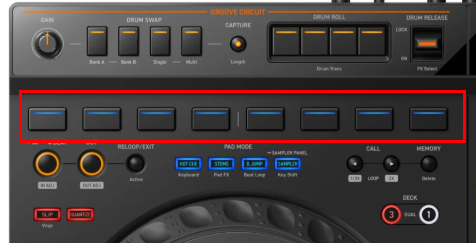
Hi @TheSouthernDJ, there is no quick way to swap pad modes like this. Essentially, you need to re-map each of the 8 pads for both pad modes. It will take more work using the MIDI Learn tool in djay, but it’s safer than editing XML files if you don’t know what you’re doing:

It might be quicker and easier to do this in the XML file with a text editor if you know what you are doing, but I don’t recommend this is you are new to XML files.

You can find your MIDI mapping files on iOS using the Files App and navigating to On My iPad>djay. The MIDI mappings have the following format *.djayMidiMapping. If you want to try editing these XML files, you can open them with a text editor on a computer. I’ve had some success using AI tools to analyze and edit these files, so you could give that an attempt. Just make sure you make a copy of your original mapping file first.

1 Like

Thanks for the quick reply @Slak_Jaw

Oh? Interesting… I was assuming I could just target that one button.

Something tells me I tried this within the djay app and it wasn’t actually seeing the presses for this row of buttons.

I’ll try again though, possibly user-error at the time.

Thanks too for the xml location, I’ll have a very careful look :slight_smile:

You’re welcome @TheSouthernDJ

  1. In the MIDI Learn tool, you first need to press the small Pad Mode button to switch the hardware to the appropriate mode. This may or may not register as MIDI mappable in djay. Either way, you don’t want to remap these buttons.
  2. Once in the desired Pad Mode, press Performance Pad 1 and remap it, for example to Instant FX1.
    a. These are the buttons you are changing, not the small 4 Pad Mode Buttons.
  3. Then repeat this for the other 7 pads.
  4. Then you need to do this for the Shift+ Pad mode and change the assignments to the STEMS functions.
  5. Finally, you’ll have to do this for Deck 2 on the other side.
1 Like

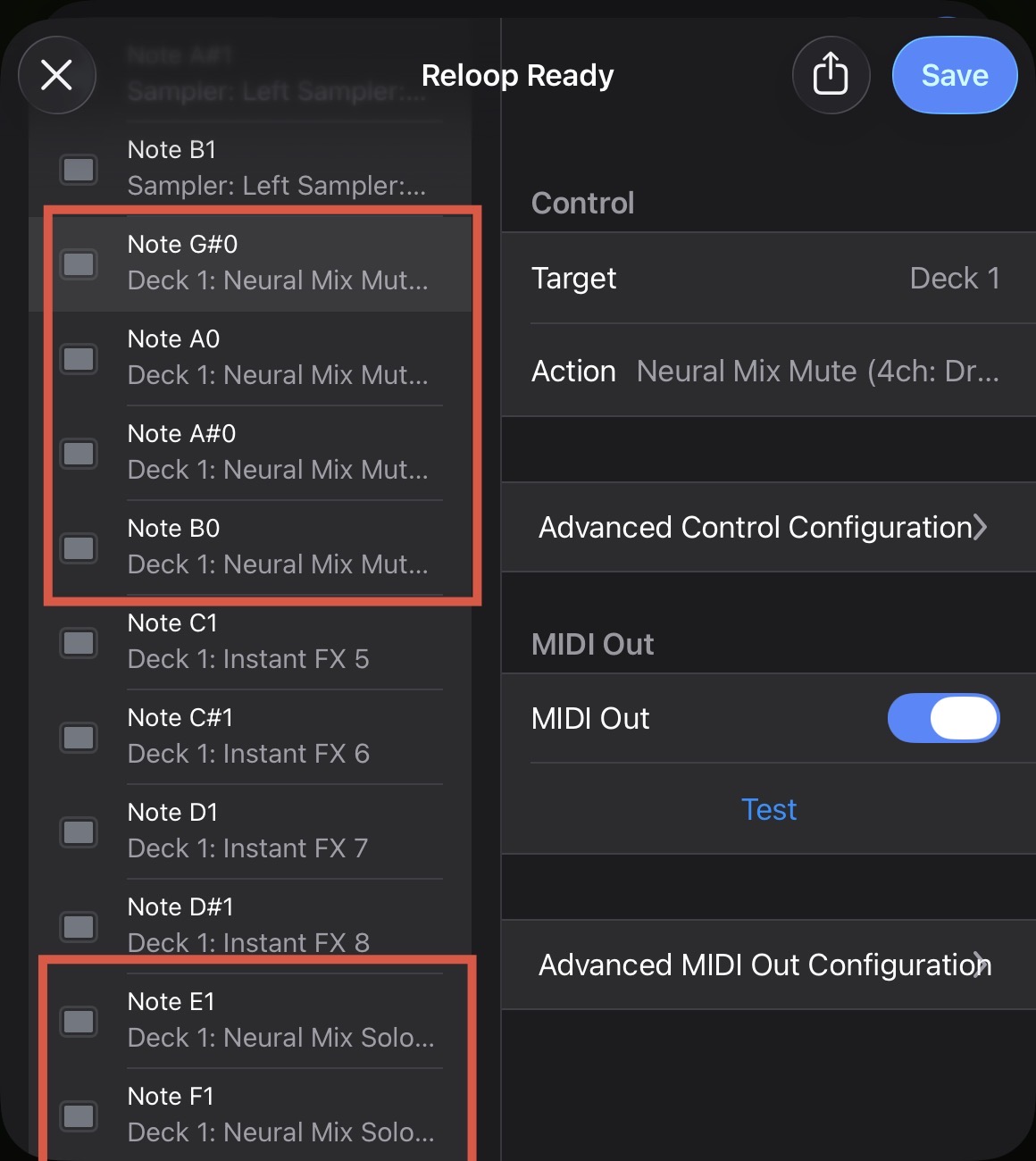
@TheSouthernDJ, so for your “non-Shift” STEMS Pad Mode each of the 8 pad buttons should look something like this:

For your Shift+STEMS Pad Mode, you will change the Instant FX to STEMs controls. I’m not sure what STEMS controls are mapped to GRV6, but you’ll probably want to make note of the current MIDI Actions for each button before you change them to Instant FX, so you know exactly how to remap them to the Shift layer. Just let me know if you have any questions or get stuck and I’ll try to guide you through it.

In total, you will need to remap the 8 pad buttons from the STEMS Pad Mode and the 8 pad buttons for the Shift+ STEMS Pad Mode. So, 16 total. Then another 16 for Deck 2. Hopefully that makes sense.

1 Like

Ahhhh…

That explains what I was doing wrong in a previous attempt here:

I was trying to remap those four mode buttons, instead of the eight pad buttons :man_facepalming:

Makes perfect sense now, thank you.

I’ve now successfully remapped all eight buttons for both modes on decks 1 and 2 (so 32x remaps in all) and I’ve now essentially inverted the functionality of the STEMS / Pad FX mode button.

The only thing that doesn’t work quite right after remapping is the pad button light status. The lit / unlit state of each of the 8 pad buttons is still “wired” to the old original hardware mode. I was very careful to remap every single element of the button too, including the Midi Out switch, but no dice.

I had a look at the xml file after I’d finished the remapping but nothing was jumping out at me here as being LED-state related:

		<dict>
			<key>keyPath</key>
			<string>turntable1.instantFx1</string>
			<key>midiChannel</key>
			<integer>7</integer>
			<key>midiData</key>
			<integer>16</integer>
			<key>midiMessageType</key>
			<integer>1</integer>
			<key>output</key>
			<dict>
				<key>midiData</key>
				<integer>80</integer>
			</dict>
		</dict>
		<dict>
			<key>keyPath</key>
			<string>turntable1.instantFx2</string>
			<key>midiChannel</key>
			<integer>7</integer>
			<key>midiData</key>
			<integer>17</integer>
			<key>midiMessageType</key>
			<integer>1</integer>
			<key>output</key>
			<dict>
				<key>midiData</key>
				<integer>81</integer>
			</dict>
		</dict>

Still, I think incorrectly lit buttons might be a small price to pay for now being able to very quickly switch to Pad FX mode without needing two hands to shift-key in to that mode.

I’ll see how I get on over the next couple of weeks and see if the button light status confuses me or not.

Thanks for all the pointers @Slak_Jaw - Merry Christmas :santa_claus:t3: :smiley:

1 Like

You’re welcome @TheSouthernDJ, glad that made sense and helped.

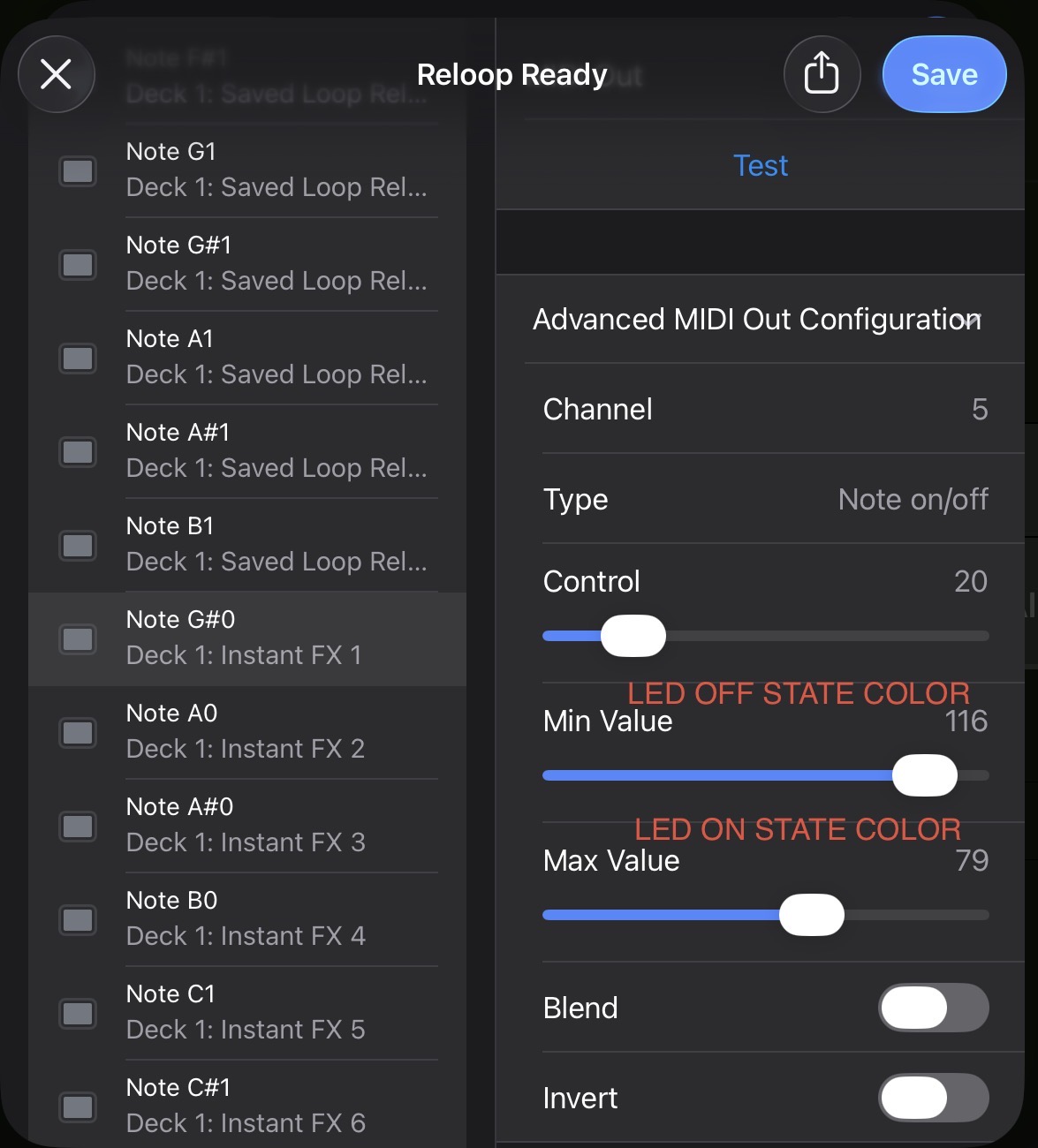
  1. You should be able to adjust the LED “Off-State” and “On-State” (when pressed) colors by expanding the Advanced MIDI Out Configuration section at the bottom.
  2. The Min Value slider controls the color of the LED when it is not being pressed
  3. The Max Value slider controls the color of the LED when it is being pressed
  4. You can either check these values for the Instant FX and STEM controls in the original (built-in) MIDI mapping for the GRV6 or experiment with the number to set your own custom colors.
  5. Note that some numbers also provide different colors at different brightness levels. These are different for every controller so you’ll need to experiment to find the values you like. I hope that helps!

1 Like

Interestingly, all the values are set to Min 0, Max 127 in the original mapping, for nearly every single button on the GRV6.

Using my copied and modified mapping I tried all manner of values and combinations, it would appear the controller just isn’t listening for those midi signals coming back out I guess :confused:

Thanks anyway @Slak_Jaw, I appreciate your time on this one, especially on Christmas Eve :blush:

You’re welcome @TheSouthernDJ. Okay, this probably means the pad colors are being handled outside the MIDI Learn tool then. Unfortunately, you’ll probably only be able to adjust these via the XML file then. You could try copying the entire XML file into something like ChatGPT/Grok and ask it to analyze how the pad colors are being controlled for the 2 Pad Modes. Then it might be able to guide you towards a solution for changing them as desired.

1 Like

@Slak_Jaw I’ve cracked it!

And it was user error :man_facepalming:

That was my wrongdoing :person_facepalming:

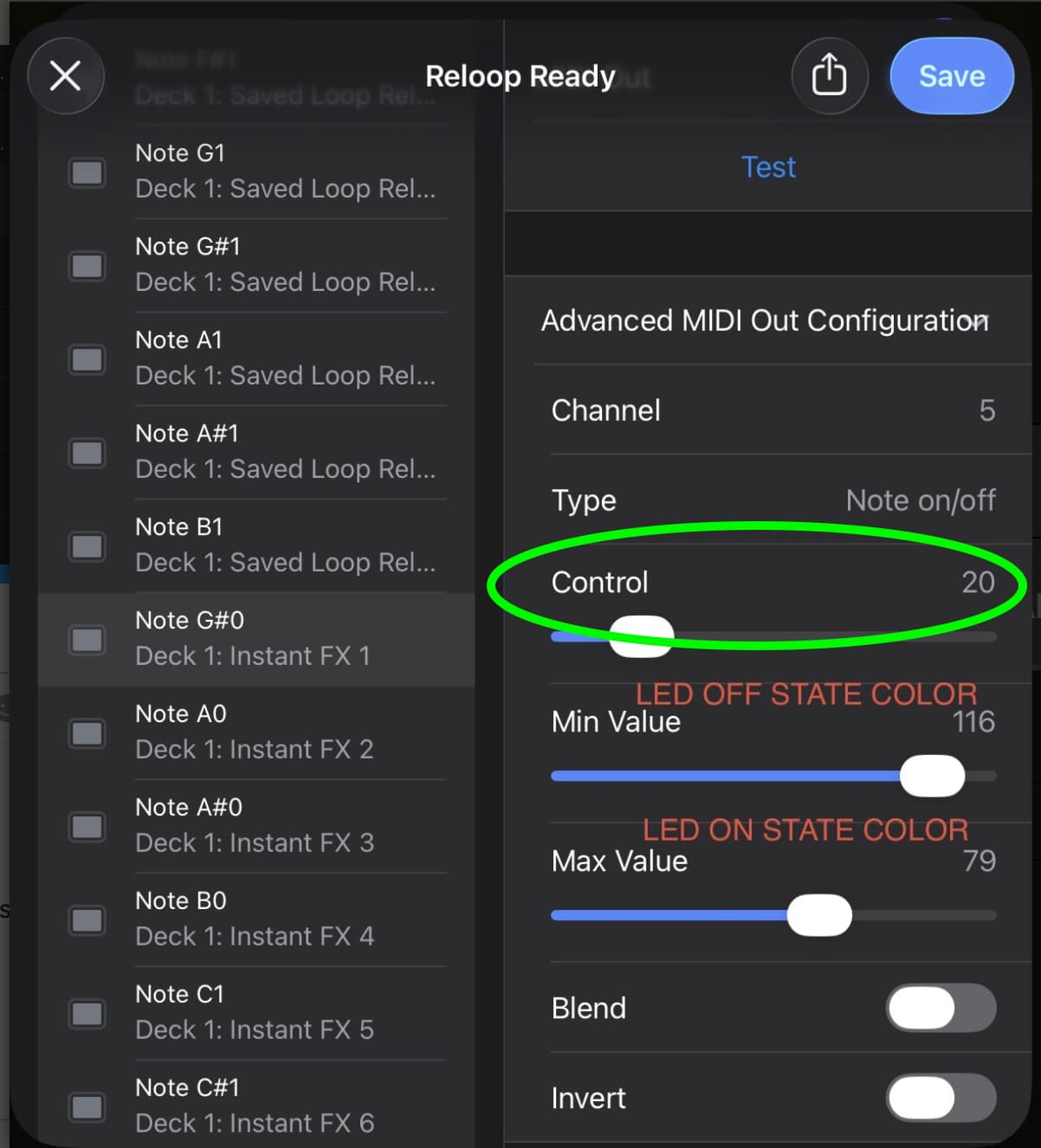
I’d re-mapped the Midi Out too carefully and essentially copied the Control numerical value from the old mapping, to the new mapping.

ie. all of these:

So it was technically doing exactly what I’d told it to do, which was to turn on / off the old LED value :person_facepalming:

When what I should have done was use the correct Midi Out control valve to ensure it targeted my newly mapped LED button id, not the old LED button id.

For example:

STEMS mode:

Pad 1 = Note E0, deck 2, neural mix active(1), button, default, midi out on, channel 10, note on/off, control 16, min 0, max 127, off, off

Pad 2 = Note F0, deck 2, neural mix active(1), button, default, midi out on, channel 10, note on/off, control 17, min 0, max 127, off, off

Pad FX mode:

Pad 1 = Note G#5, deck 2, instant fx 1, button, default, invert off, midi out on, channel 10, note on/off, control 80, min 0, max 127, off, off

Pad 2 = Note A5, deck 2, instant fx 2, button, default, invert off, midi out on, channel 10, note on/off, control 81, min 0, max 127, off, off

I needed to swap the control output values for both sets of buttons from 16, 17, 18, etc… to 80, 81, 82, etc…

Thanks again for your help, I’ve now inverted the action of this button around:

A single press now switches to Pad FX mode, and a shift+press now switches to STEMS mode.

Amazing :partying_face:

Thanks again for all your time and pointers, the GRV6 is now perfectly tailored to my needs and the button leds match the actions perfectly :blush:

1 Like

Excellent! You’re welcome @TheSouthernDJ. Glad you were able to sort it out!

1 Like